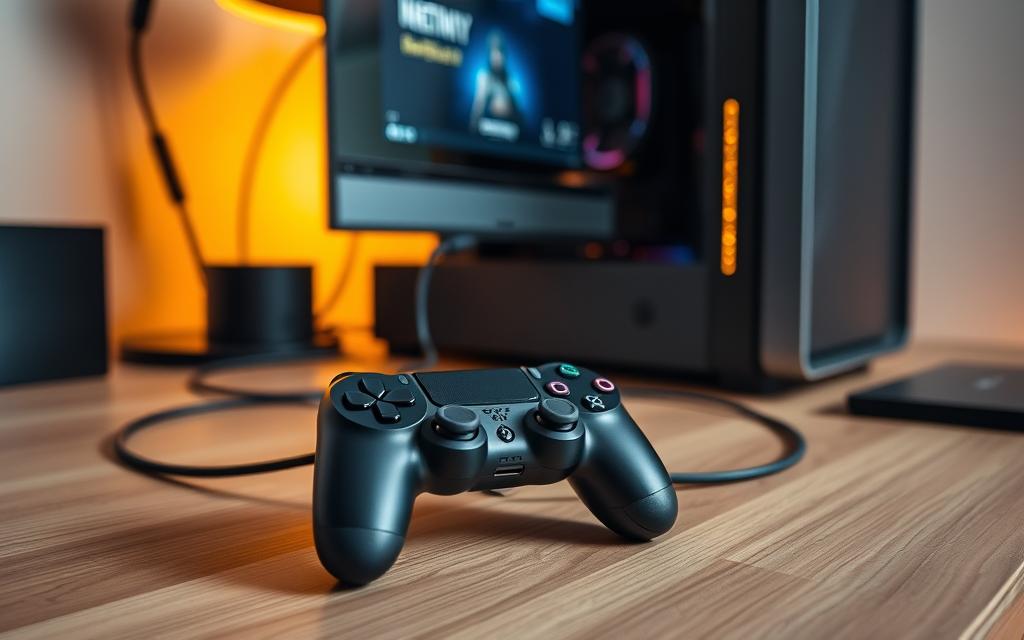
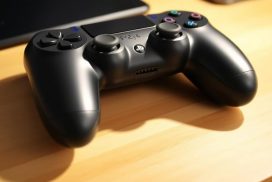
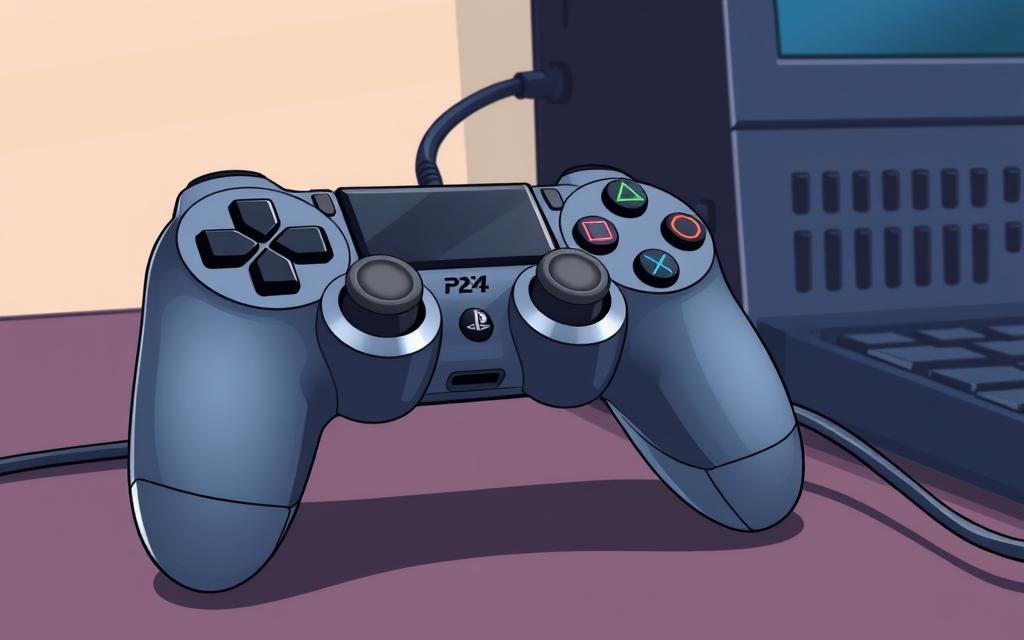
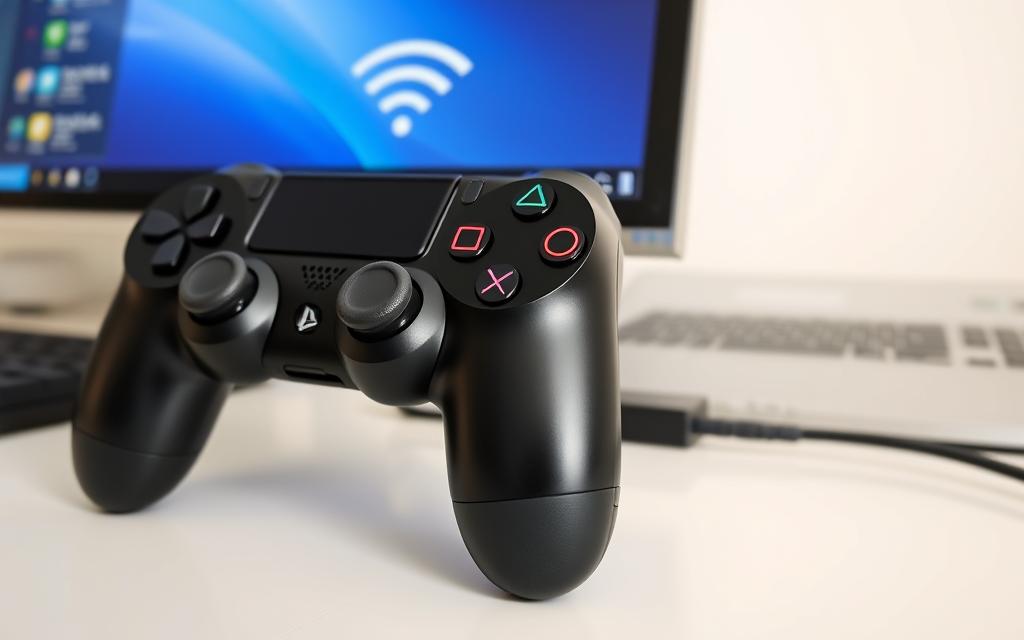
Gaming on PC has never been more enjoyable, thanks to the compatibility of PS4 controllers with Windows systems. Using a PS4 controller on your PC provides a more immersive and comfortable gaming experience compared to the traditional keyboard-mouse combo.
This comprehensive guide will walk you through the process of connecting your PS4 controller to your PC via Bluetooth or USB, ensuring you can enjoy your favorite games with precision and comfort.
By following this guide, you’ll learn about compatibility considerations, necessary drivers, and troubleshooting steps to resolve common connection issues, making it easier to connect your PS4 controller and start gaming.
Understanding PS4 Controller Compatibility with PC
Connecting a PS4 controller to a PC can enhance your gaming experience significantly. The compatibility between PS4 controllers and PCs is quite straightforward, allowing for both wired and wireless connections.
Using a PS4 controller for PC gaming offers several advantages. It provides a comfortable gaming experience, and many games are optimized to work seamlessly with the controller’s layout. Moreover, the controller’s familiarity can reduce the learning curve for new games.
“The DualShock 4 is a great controller, and using it on PC is a breeze.” –
What You’ll Need Before Getting Started
What You’ll Need Before Getting Started
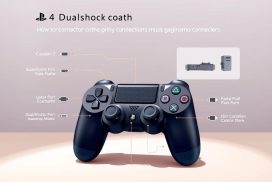
To connect your PS4 controller to a PC, you’ll need a few essential items. First, ensure your controller is functioning and has an adequate battery charge. For a wired connection, a compatible micro-USB cable is necessary. For wireless connectivity, your PC needs to have Bluetooth capability or you can use an external Bluetooth adapter.
Connection Method
Required Equipment
Wired
Micro-USB cable, functioning PS4 controller
Wireless
Bluetooth capability on PC or external Bluetooth adapter, functioning PS4 controller
Some setups may also benefit from additional software like DS4Windows to help configure the controller properly. Ensuring your PC meets the minimum system requirements and has up-to-date drivers is also crucial.
How to Pair PS4 Controller to PC via USB Connection
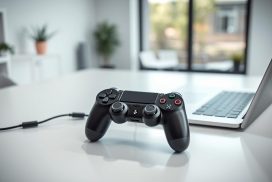
Using a PS4 controller on a PC is a great way to enhance your gaming experience, and it starts with a simple USB connection. This method is straightforward and doesn’t require any additional software for the initial connection.
To connect your PS4 controller to your PC via USB, you’ll need a few basic pieces of equipment. First, ensure you have a PS4 controller and a USB cable. The USB cable that comes with your controller or a compatible replacement is sufficient. Additionally, your PC should have a free USB port.
Key Equipment: PS4 Controller, USB Cable, PC with a free USB port.
Step-by-Step USB Connection Process
1. Take your USB cable and connect one end to your PS4 controller and the other end to your PC’s USB port.
2. Your PC should recognize the controller. You might need to install drivers, which should happen automatically if your PC is connected to the internet.
3. Once connected, you can use the controller to navigate through compatible games or applications on your PC.
Testing Your Controller After Connection
After connecting your PS4 controller, it’s essential to test it to ensure it’s working correctly. You can test it by opening a compatible video game or a controller test application. Many modern games display on-screen button prompts that correspond to your controller, serving as a quick visual confirmation of proper connection.
Some useful testing methods include:
Using Windows’ built-in controller testing tool accessible through the Control Panel under “Devices and Printers.”
Testing all buttons, analog sticks, and triggers to ensure your controller is functioning properly.
Checking Steam’s controller configuration menu for comprehensive testing options.
Connecting Your PS4 Controller Wirelessly via Bluetooth
To enjoy gaming on your PC without the constraint of cables, connecting your PS4 controller wirelessly via Bluetooth is a straightforward process. This method offers more flexibility and reduces clutter, enhancing your overall gaming experience.
Preparing Your Controller for Bluetooth Pairing
Before you start the pairing process, ensure your PS4 controller is ready for Bluetooth connection. To do this, you’ll need to put your controller in pairing mode. This is achieved by holding down the PS button and the Share button simultaneously until the light bar begins to flash. This indicates that the controller is now discoverable by your PC.
Pairing Process on Windows 10/11
To pair your PS4 controller with a Windows 10 or 11 PC, go to your PC’s Bluetooth settings and search for available devices. Select your PS4 controller from the list of discovered devices to initiate the pairing. If prompted, enter the necessary PIN or confirm the pairing on both devices. Once connected, your PC should recognize the controller, and you can start using it for gaming.
Using a Bluetooth Adapter (If Your PC Lacks Bluetooth)
If your PC doesn’t have built-in Bluetooth, you can use a commercially available Bluetooth USB adapter to establish a wireless connection. It’s crucial to select a Bluetooth adapter that supports gaming peripherals, as some generic adapters may not maintain stable connections with PS4 controllers. When choosing an adapter, consider one that is Bluetooth 4.0 or higher for better range and reliability. Position the adapter in a USB port with a clear line-of-sight to your controller for optimal signal strength.
Some key considerations when using a Bluetooth adapter include:
– Selecting an adapter that explicitly supports gaming peripherals.
– Ensuring the adapter is plug-and-play or can be easily configured with the manufacturer’s drivers.
– Positioning the adapter for optimal signal strength.
– Utilizing any software provided with the adapter to manage connected devices and troubleshoot issues.
Troubleshooting and Optimizing Your PS4 Controller Experience
For a seamless gaming experience, troubleshooting your PS4 controller is essential. If your PS4 controller does not work properly on your PC, it may be due to compatibility or driver issues.
One effective solution is to use DS4Windows, a software that allows your PS4 controller to appear as an Xbox360 controller, making it perfectly compatible with Windows10. Download DS4Windows from the official site, extract the downloaded file, and launch DS4Windows.exe. Follow the instructions to install the necessary drivers.
Once DS4Windows is configured, connect your controller via USB or Bluetooth. The controller will appear in the DS4Windows interface, where you can customize its settings, including button mapping and the light bar color.
Steam offers native support for PS4 controllers. After pairing your PS4 controller with your PC, launch Steam and go to “Settings” > “Controller” > “General Controller Settings.” Check the “PlayStation Configuration Support” box to enable PlayStation configuration.
DS4Windows remains one of the most powerful solutions for PS4 controller compatibility issues.
For Steam users, enabling PlayStation Configuration Support provides excellent integration.
Input lag can be minimized by updating your controller’s firmware.
Button remapping through either Steam or DS4Windows can significantly improve your gaming experience.
By following these steps and tips, you can optimize your PS4 controller for a better gaming experience on PC.
FAQ
What are the benefits of using a PS4 controller for PC gaming?
Using a PS4 controller for PC gaming offers several benefits, including comfort, familiarity, and freedom of movement. The DualShock 4’s ergonomic design and precise controls make it an excellent choice for gamers who prefer a console-style gaming experience on their PC.
Can I use my PS4 controller wirelessly on my PC?
Yes, you can use your PS4 controller wirelessly on your PC via Bluetooth. To do this, you’ll need to put your controller in pairing mode and connect it to your PC using the Windows Bluetooth settings.
Do I need any additional software to use my PS4 controller on PC?
While you don’t necessarily need additional software, using a tool like DS4Windows can enhance your gaming experience by providing more configuration options and improving compatibility with certain games.
How do I know if my PC is compatible with my PS4 controller?
Most modern PCs are compatible with the PS4 controller, either via USB or Bluetooth. However, some older PCs may require a Bluetooth adapter to establish a wireless connection.
Can I use my PS4 controller with all PC games?
While many PC games support the PS4 controller, some may not work properly or require additional configuration. You can check the game’s settings or documentation to see if it supports the DualShock 4.
Why is my PS4 controller not connecting to my PC?
If your PS4 controller is not connecting to your PC, try checking the USB cable or Bluetooth connection, restarting your controller, or reinstalling the DS4Windows software. You can also try resetting your controller by pressing the reset button on the back.
As a tech media writer, I’ve witnessed the evolution of content creation firsthand. From painstakingly crafting each sentence to leveraging AI-powered tools, the landscape has dramatically shifted. One such transformative tool is the AI paragraph rewriter, a powerful ally for anyone who works with words. These tools, harnessing the might of artificial intelligence and large…
The PlayStation4 (PS4) is a home video console developed by Sony Interactive Entertainment. Announced as the successor to the PlayStation3 in February 2013, it marked a significant milestone in the gaming industry. The release date of the PS4 was a highly anticipated event, with the console launching on November 15, 2013, in North America, and…
Phasmophobia has taken the gaming world by storm with its unique horror game experience, captivating players and streamers alike since its early access release in 2020 on Steam. The game involves teams of up to four players investigating haunted locations to gather evidence and determine the type of ghost causing paranormal activity. With its success…
In an age where information is at the core of decision-making, the ability to access accurate public records and conduct thorough background checks is more invaluable than ever. CocoFinder emerges as a robust platform in this domain, promising a vast repository of public records and accessibility to a variety of search tools. This review will…
Maintaining your audio equipment is crucial for achieving high-quality recordings and playback. Whether you’re an audio professional, a musician, or a hobbyist, regular care of your gear ensures it performs optimally and lasts for years. By taking proper precautions and using the right tools, you can preserve the fidelity of your equipment and make your…
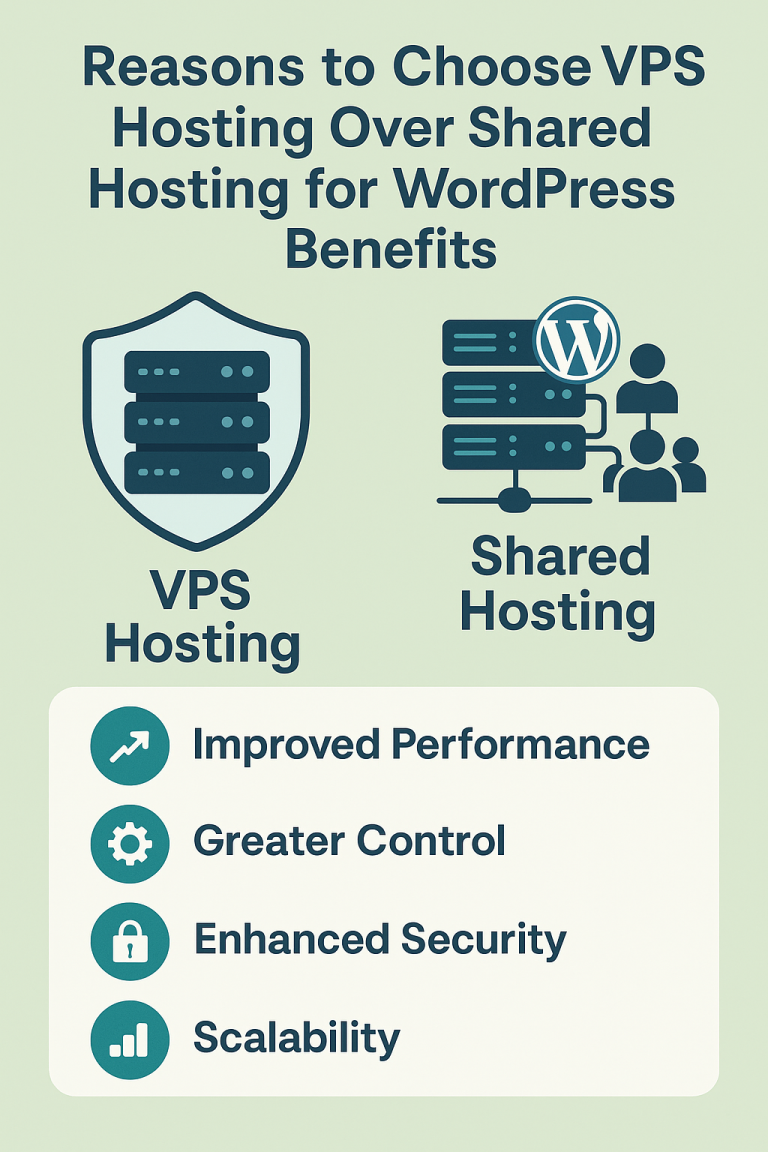
If you run a WordPress site and are looking to improve performance, security, or scalability, you’ve likely come across two popular hosting options: VPS (virtual private server) hosting and shared hosting. While shared hosting is often the go-to for beginners due to its low cost, VPS offers a superior solution for those ready to grow….