Step-by-Step Guide: How to pair ps4 controller
Gaming on-the-go has become increasingly popular, and using a PS4 controller can significantly enhance the experience. For mobile gaming enthusiasts, pairing a DualShock wireless controller with their device is a great way to improve comfort and efficiency.
To enjoy gaming anywhere, follow this comprehensive guide that walks you through the process of pairing your PS4 controller with various devices, including PlayStation consoles, Android devices, and iPhones. By understanding the components of your wireless controller and following the steps outlined, you can establish a stable connection and enjoy your favorite games on the go.
Understanding Your DualShock 4 Wireless Controller
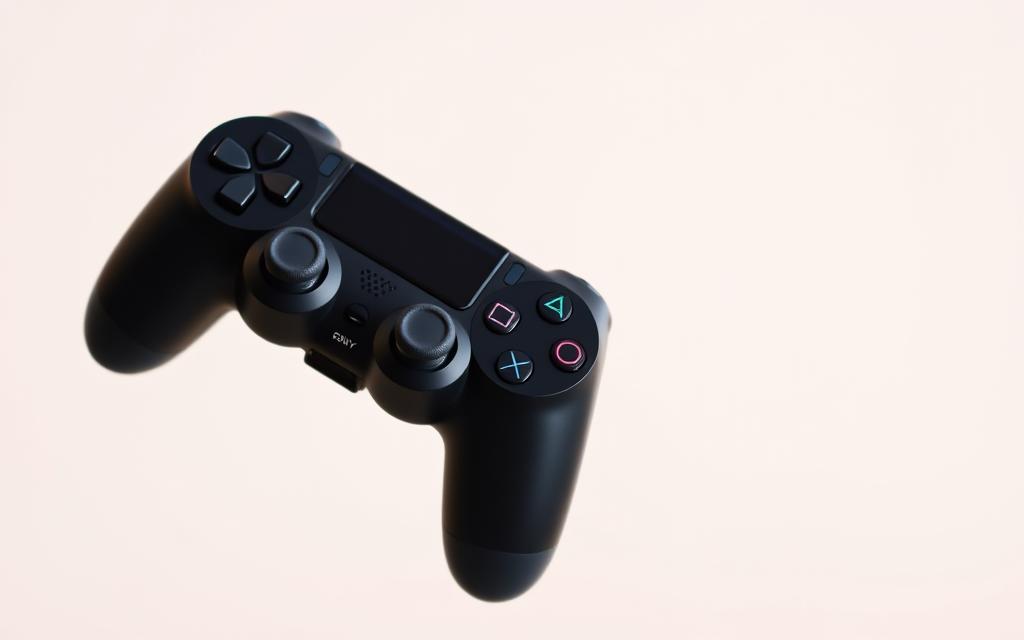
To effectively utilize your DualShock4, it’s essential to understand its components and functionality. The DualShock4 wireless controller is designed with several key features that enhance your gaming experience.
Key Components and Buttons
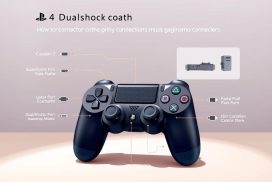
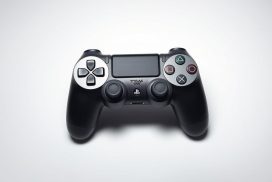
The DualShock4 wireless controller features several essential buttons, including the PS button, Share button, and Options button. The light bar on the controller serves as an indicator of its connection status. When the light bar is flashing, it indicates that the controller is in pairing mode, and when it’s solid, it confirms a successful connection.
| Component | Function |
|---|---|
| PS Button | Accesses the PlayStation menu |
| Share Button | Allows sharing of gameplay moments |
| Options Button | Provides in-game options |
| Light Bar | Indicates connection status |
When to Pair Your Controller
Understanding when to pair your controller is crucial. You’ll need to pair it when using it for the first time, connecting to a new device, or after resetting your controller. For more detailed instructions on pairing your PS4 controller without a USB cable, you can visit this guide.
Related:

How to Pair PS4 Controller with Your PlayStation Console
Pairing your PS4 controller with your PlayStation console is a straightforward process that can be accomplished in a few simple steps. This process ensures that you can enjoy your games without any interruptions or connectivity issues.
Using a USB Cable Method
The most reliable method to pair your PS4 controller with your PlayStation console is by using the USB cable that came with your system. Simply connect the USB cable to both devices and press the PS button. This method not only pairs your controller but also charges it simultaneously, making it an efficient option when your controller’s battery is low.
Wireless Pairing Method
For wireless pairing, ensure your controller is turned off first, then simultaneously press and hold the PS and Share buttons until the light bar starts flashing rapidly, indicating the controller is in pairing mode. Your console will detect the controller and establish a connection automatically. You’ll know it’s successful when the light bar stops flashing.
Using either method, you can connect up to four wireless controllers to your PlayStation console at one time, making it perfect for multiplayer gaming sessions at home.
Connecting Your PS4 Controller to Mobile Devices
Pairing your PS4 controller with your mobile device is a straightforward process that allows you to enjoy your favorite games on-the-go. The DualShock4 wireless controller is compatible with devices running Android 10 or later and iOS 13 or later.
Pairing with Android Devices
To pair your DualShock wireless controller with an Android device, ensure your device is running Android 10 or later. Check your Android version by going to Settings > “About phone”. Then, put your controller in pairing mode and connect through your device’s Bluetooth settings. Android users will find the best compatibility with Sony Xperia devices.
Some controller features may be limited when connected to mobile devices. For example, the touchpad functionality and rumble features may not work on all devices. You can check game compatibility with controllers in the app description on the Google Play Store before downloading.
Pairing with iPhone and iOS Devices
For iPhone and iOS devices, you’ll need iOS 13 or later to connect your PS4 controller. Access your Bluetooth settings, put your controller in pairing mode, and select it from the list of available Bluetooth devices. The PS Remote Play app allows you to stream games from your PlayStation to your mobile device, giving you the freedom to play your favorite games away from home. For more information, visit the official PlayStation support page.
| Device Type | Minimum OS Requirement | Pairing Method |
|---|---|---|
| Android Devices | Android 10 | Bluetooth Settings |
| iOS Devices | iOS 13 | Bluetooth Settings |
Troubleshooting Common Pairing Issues
If you’re experiencing difficulties pairing your PS4 controller, several simple troubleshooting steps can resolve the issue. First, ensure your controller is fully charged. A low battery is a common cause of pairing problems. If issues persist, try resetting your controller by inserting a small pin into the reset button on the back.
Other solutions include “forgetting” the controller in your device’s Bluetooth settings and reconnecting it, and checking for interference from other wireless devices. For console connection issues, make sure your PlayStation system software is up to date. By following these steps, you can effectively troubleshoot and resolve common pairing issues with your PS4 controller.
FAQ
What is the first step to pairing my DualShock 4 wireless controller?
To start pairing, ensure your DualShock 4 is in pairing mode by pressing and holding the PS and Share buttons simultaneously until the light bar starts flashing.
How do I connect my DualShock 4 to my PS4 console using a USB cable?
Simply connect the DualShock 4 to your PS4 console using a USB cable, and the console will automatically detect and pair the device.
Can I pair my DualShock 4 wireless controller with multiple devices?
Yes, you can pair your DualShock 4 with multiple devices, including Android and iOS devices, but it can only be connected to one device at a time.
Why is my DualShock 4 not pairing with my PS4 console?
If your DualShock 4 is not pairing, try resetting it by inserting a small pin into the reset hole on the back, then try pairing again.
How do I know if my DualShock 4 is in pairing mode?
When in pairing mode, the light bar on your DualShock 4 will flash rapidly, indicating it is ready to be paired with a device.
Can I use Remote Play to connect my DualShock 4 to a device other than my PS4?
Yes, you can use the Remote Play app to connect your DualShock 4 to a compatible device, such as a PC or mobile device, and play PS4 games remotely.
What should I do if my DualShock 4 is not connecting to my device via Bluetooth?
If you’re having trouble connecting via Bluetooth, try restarting your device, resetting your DualShock 4, or checking your device’s Bluetooth settings to ensure the controller is properly paired.