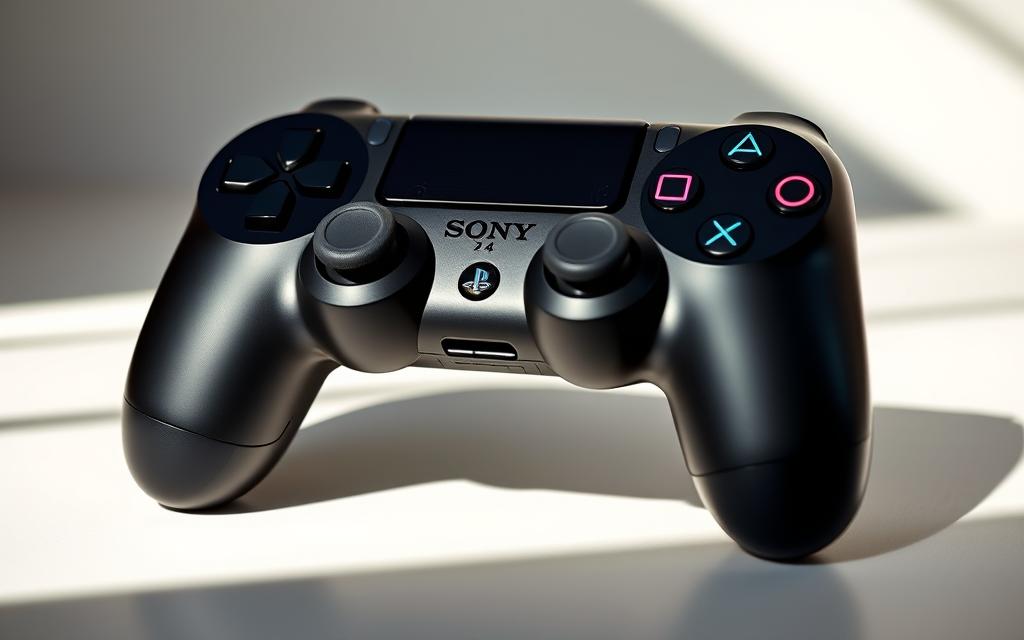
Step-by-Step Guide: How do i connect a controller to ps4
The PS4 controller is renowned for its comfort and compatibility with various devices. However, the process of connecting it to your PlayStation 4 can sometimes be confusing.
Connecting your PS4 controller to your console is a straightforward process that can be completed in a few simple steps, allowing you to access all the features the controller offers.
This comprehensive guide will walk you through the pairing process, covering both wired and wireless methods. By understanding the components of the DualShock4 controller and the benefits of different connection methods, you’ll be able to establish a stable connection and enjoy your gaming experience.
Understanding Your PS4 Controller
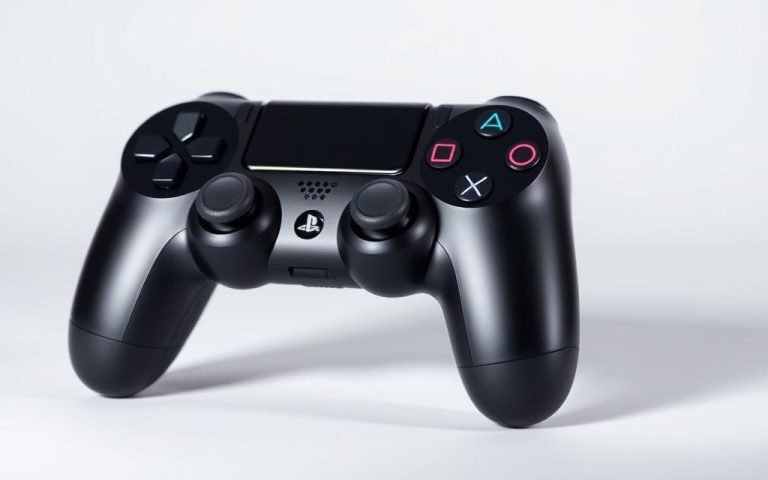
To get the most out of your PS4 gaming experience, it’s essential to understand the components and functionality of your PS4 controller. The DualShock 4 controller is designed to provide an immersive gaming experience, with features like a light bar, vibration, and a share button.
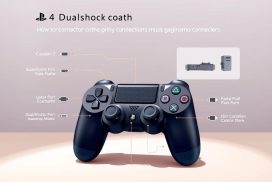
Components of a DualShock4 Controller
The DualShock 4 controller is equipped with various components that enhance gameplay. These include a light bar that provides visual feedback, vibration motors for a more immersive experience, and a share button that allows you to easily share your gaming moments on social media.
Related:


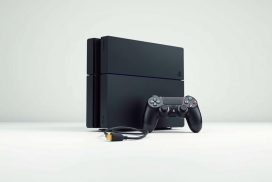
Charging Your PS4 Controller
Properly charging your PS4 controller is crucial for maintaining consistent wireless connectivity. You can charge your controller using the included USB cable connected to your PS4 console. The light bar on your controller indicates the charging status, turning yellow when charging while powered off. Here are some key points to consider when charging your PS4 controller:
- A fully charged PS4 controller typically provides 4-8 hours of gameplay, depending on usage patterns.
- The controller can be charged even when the PS4 console is in rest mode, provided you’ve enabled this feature in your power settings.
- Understanding the charging indicators helps you monitor battery levels and plan your gaming sessions accordingly.
- For more detailed information on maintaining your PS4 controller, you can refer to guides on repairing a broken PS4 controller charger.
How Do I Connect a Controller to PS4: Wired Method
Using a USB cable, you can easily connect your DualShock4 controller to your PS4 console. This method is particularly useful when you’re experiencing wireless connectivity issues or prefer a more stable connection for competitive gaming.
Required Equipment for Wired Connection
To establish a wired connection, you’ll need a USB cable compatible with your PS4 controller. Typically, a standard USB to micro-USB cable is used, as the DualShock4 features a micro-USB port. Ensure the cable is in good condition to avoid any connection issues.
Step-by-Step Wired Connection Process
Connecting your controller to your PS4 via a wired method is a simple process. First, locate the USB cable and plug the micro-USB end into your DualShock4. Then, connect the other end to an available USB port on your PS4 console. Your PS4 should automatically recognize the controller, allowing you to use it.
Benefits of Using a Wired Connection
A wired connection offers several advantages. Some of the key benefits include:
- Reduced input lag, providing a more responsive gaming experience.
- Simultaneous charging of your controller while you play, eliminating the worry of battery depletion.
- Immunity to wireless interference, making it a reliable choice in environments with multiple electronic devices.
- A faster and more straightforward setup process compared to wireless pairing.
By opting for a wired connection, you can enjoy a more stable gaming experience, which is particularly beneficial for competitive gaming scenarios.
Connecting Your PS4 Controller Wirelessly
Connecting your PS4 controller wirelessly enhances your gaming experience by providing more freedom to play from anywhere in the room. This wireless connection is made possible through Bluetooth technology, allowing you to enjoy your games without the clutter of cables.
Preparing Your Controller for Bluetooth Pairing
To connect your PS4 controller wirelessly, you first need to prepare it for Bluetooth pairing. Ensure your controller is sufficiently charged or connected to a power source. Then, turn on your PS4 console and navigate to the Settings menu.
On your controller, press and hold the PS button and the Share button simultaneously until the light bar begins to flash. This indicates that the controller is in pairing mode.
Pairing Process via Bluetooth
With your controller in pairing mode, go to the Settings menu on your PS4, select “Devices,” and then choose “Bluetooth Devices.” Your PS4 will search for available Bluetooth devices. Select your controller from the list of discovered devices to complete the pairing process.
Once paired, the light bar on your controller will turn a specific color based on the player number assigned to it. For instance, the first controller connected will have a blue light, while subsequent controllers will be assigned different colors.
Managing Multiple Controllers
The PS4 system supports up to four controllers connected simultaneously, making it ideal for local multiplayer gaming sessions. To manage multiple controllers, ensure each one is fully paired before attempting to connect the next. The PS4 remembers previously paired controllers, simplifying the reconnection process in future gaming sessions.
| Player Number | Light Bar Color |
|---|---|
| 1 | Blue |
| 2 | Red |
| 3 | Green |
| 4 | Pink |
To manage or disconnect specific controllers, navigate to the Devices menu in the PS4 Settings. Here, you can view and modify all connected controllers, ensuring a seamless gaming experience for all players.
Troubleshooting Connection Issues
Encountering issues with your PS4 controller connection can be frustrating, but there are several steps you can take to resolve the problem. Connection issues can arise from various sources, including hardware malfunctions or simple pairing problems.
Common Connection Problems
Some of the most common issues include controllers not pairing correctly, intermittent disconnections, or failure to charge. These problems can often be traced back to issues with the controller itself, the PS4 console, or the connection method being used.
- Check the charging cable and ensure it’s working properly.
- Restart your PS4 console to resolve any temporary glitches.
- Try resetting your controller, which we’ll cover in the next section.
How to Reset Your PS4 Controller
Resetting your DualShock 4 controller can often resolve connectivity issues. To do this, locate the small reset button on the back of the controller, near the L2 shoulder button. Use a small pin or paperclip to press the button, holding it for a few seconds before releasing. After resetting, try pairing the controller with your PS4 again.
For more detailed guides on repairing your PS4 controller, you can visit this helpful resource.
When to Contact PlayStation Support
If you’ve tried all the troubleshooting steps and your controller still won’t connect, it may be time to contact PlayStation Support. Persistent issues, especially those involving multiple controllers, could indicate a problem with your PS4 console. Support can provide guidance on warranty coverage and repair options for confirmed hardware failures.
- If your controller exhibits unusual behavior like random disconnections or unresponsive buttons.
- Controllers that won’t charge despite trying multiple cables and power sources.
Conclusion
Enjoy uninterrupted gaming sessions by following the simple steps to connect your PS4 controller. Whether you’re playing on your PlayStation console or another compatible device, the DualShock4 is an incredibly versatile gamepad.
The process of connecting your PS4 controller can be accomplished through either wired or wireless methods, giving you the flexibility to choose based on your preferences and needs. Understanding the components of your controller and the connection process helps you troubleshoot any issues, ensuring a seamless gaming experience.
By maintaining your controller, including proper charging and handling, you can extend its lifespan and maintain optimal performance. With your controller connected, you can focus on enjoying your favorite games on your PS4 console, making the most of your gaming time at home.
FAQ
What is the first step to connect my PS4 controller?
To start, ensure your PS4 console is turned on. You can then proceed to connect your controller either via a USB cable or through Bluetooth.
How do I put my PS4 controller in pairing mode?
To put your DualShock 4 controller in pairing mode, press and hold the PS button and the Share button simultaneously for a few seconds until the light bar starts blinking.
Can I connect multiple controllers to my PS4?
Yes, you can connect multiple controllers to your PS4 console. This is particularly useful for multiplayer games. You can manage multiple controllers through your PS4’s settings menu.
Why is my PS4 controller not connecting?
If your PS4 controller is not connecting, try resetting it by locating the small reset button on the back of the controller near the L2 button. Use a small pin to press the button, then try pairing it again.
How do I know if my PS4 controller is charging?
When your PS4 controller is charging, the light bar on the controller will turn orange, indicating that it is receiving power. Once fully charged, the light will turn off.
Can I use a PS4 controller on other devices?
Yes, the PS4 controller can be used on other devices that support Bluetooth, such as PCs and some Android devices, by putting it in pairing mode and connecting it through the device’s Bluetooth settings.
What should I do if my PS4 controller’s light bar is not turning on?
If the light bar on your PS4 controller is not turning on, it may be due to a drained battery. Try charging it. If the issue persists, you may need to reset the controller or contact PlayStation support.