Does ps4 controller work on ps5? Here’s What You Need to Know!
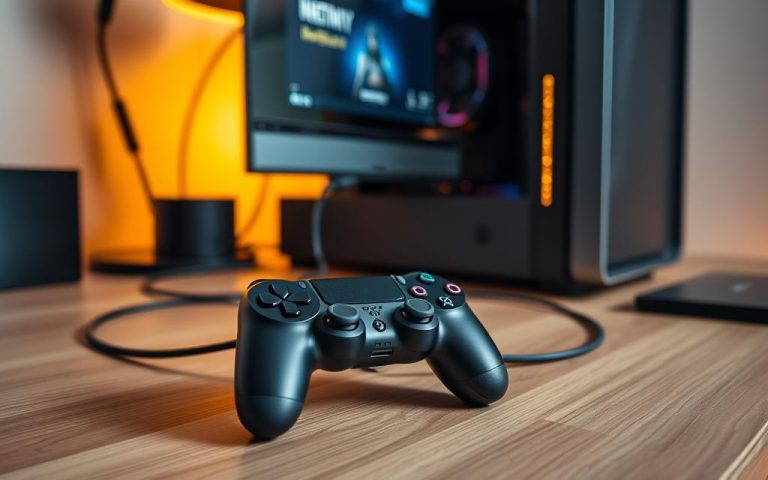
The arrival of the PS5 has brought significant advancements in gaming technology, but many gamers are left wondering if their existing PS4 controllers are compatible with the new console.
It’s a valid concern, as the DualShock 4 has been a favorite among gamers. The good news is that PS4 controllers do work with PS5, but with certain limitations, particularly when it comes to PS5 games.
This article will explore the compatibility of PS4 controllers with PS5, including how to connect them, which games they work with, and the potential workarounds for any limitations.
Understanding these aspects will help you make the most of your gaming experience on the PS5, whether you’re playing PS4 games or looking into the possibilities with PS5 games.
The Compatibility Question: PS4 Controllers and PS5
The burning question on every PS4 owner’s mind as they upgrade to the PS5 is whether their existing controllers will work with the new console. The answer is nuanced, involving both compatibility and limitations.
Related:


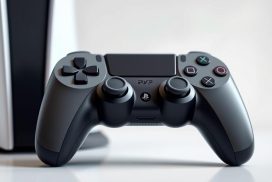

The Short Answer: Yes, But With Limitations
The good news is that PS4 controllers, including the official DualShock4 and Nacon controllers for PlayStation, are compatible with the PS5. However, this compatibility is limited to playing backward-compatible PS4 games. You won’t be able to use your PS4 controller to play PS5-exclusive games.
Why Sony Restricts PS4 Controllers on PS5 Games
Sony’s decision to restrict PS4 controllers on PS5 games is largely due to the advanced features of the new DualSense controller, such as haptic feedback, adaptive triggers, and a built-in microphone, which aren’t available in the DualShock4. By limiting PS4 controller use to PS4 games, Sony ensures that players experience PS5 games as intended, with all the new controller features.
Understanding PS4 Controller Compatibility on PS5
Understanding how PS4 controllers work on the PS5 is crucial for gamers transitioning to the new console. The PS5’s backward compatibility feature allows for a range of uses for the PS4 controller, also known as the DualShock 4.
What Works: PS4 Games and System Navigation
You can use your PS4 controller to play PS4 games on the PS5 through backward compatibility. It’s also compatible with navigating the PS5 menu and settings, controlling media apps like Netflix, YouTube, and Disney+, and playing multiplayer on PS4 games. This makes the transition to the PS5 smoother for gamers who have existing PS4 game libraries and accessories.
What Doesn’t Work: PS5-Exclusive Games
However, the PS4 controller has limitations. You cannot use it to play PS5-exclusive games. If you try to launch a PS5 game with a PS4 controller, the system will prompt you to switch to a DualSense controller. Games like Demon’s Souls Remake, Returnal, and Hogwarts Legacy require the newer controller, leveraging its advanced features.
How to Connect Your PS4 Controller to PS5
If you’re wondering how to connect your PS4 controller to your PS5, you’re in the right place, as we’ll explore two convenient methods.
Connection via USB Cable
The simplest and quickest method to connect your PS4 controller to your PS5 is by using a USB cable. To do this, ensure your PS5 is turned on, then connect the controller to the console using the USB cable, and press the PS button on the controller. Once recognized, you can disconnect the USB cable and use the controller wirelessly.
Connection via Bluetooth
For a wireless connection, you can pair your PS4 controller with your PS5 via Bluetooth. Navigate to the “Settings” menu on your PS5, select “General,” then “Bluetooth Accessories.” Put your PS4 controller in pairing mode by holding the SHARE and PS buttons until the light flashes. Then, select the controller from the list of available Bluetooth devices to complete the connection.
| Connection Method | Steps | Advantages |
|---|---|---|
| USB Cable | 1. Turn on PS5 2. Connect controller via USB 3. Press PS button | Quick and simple, initial wired connection allows for subsequent wireless use |
| Bluetooth | 1. Go to PS5 Settings 2. Select Bluetooth Accessories 3. Pair controller | Wireless convenience, no need for a cable |
Playing PS4 Games on PS5 with DualShock 4
The PS5’s backward compatibility feature allows for a seamless transition between console generations, enabling players to enjoy their PS4 games with the DualShock4 controller. This compatibility is a significant advantage for gamers who have invested in a library of PS4 titles.
Backward Compatibility Explained
The PS5 supports thousands of PS4 games through its backward compatibility feature. There are two methods to access these games: using physical PS4 discs or downloading digital titles from your PlayStation Network library. This flexibility ensures that players can enjoy their PS4 games without worrying about the format they are in.
Performance Benefits for PS4 Games on PS5
Playing PS4 games on the PS5 comes with several performance benefits. The PS5’s Game Boost feature can bump up the frame rate to 60fps or higher, and the SSD significantly reduces loading times. Additionally, some games may see resolution enhancements. These improvements make playing PS4 games on the PS5 with the PS4 controller a compelling experience.
- Seamless play of PS4 games using the DualShock4 controller
- Access to PS4 games via physical discs or digital downloads
- Enhanced performance through Game Boost, faster loading times, and potential resolution improvements
Does PS4 Controller Work on PS5 for Multiplayer?
As gamers transition to the PS5, they often wonder if their PS4 controllers will work for multiplayer games. The compatibility of PS4 controllers with the PS5 for multiplayer is a nuanced issue, dependent on the type of game being played.
Local Multiplayer Options with Mixed Controllers
For local multiplayer on PS4 games, players can use a mix of PS4 controllers and PS5 controllers simultaneously. Games like Overcooked! 2 or Rocket League (PS4 versions) support this mixed controller setup, allowing for a more flexible gaming experience. This means that if you have a collection of PS4 games and controllers, you can still enjoy local multiplayer with friends and family using the controllers you have on hand.
Online Gaming Considerations
However, for PS5-exclusive multiplayer games, all players must use the DualSense controller. Titles like Sackboy: A Big Adventure (PS5 version) require every player to have their own DualSense controller. A practical workaround for this limitation is to install the PS4 versions of cross-generation games when available, enabling the use of PS4 controllers for multiplayer sessions. This flexibility allows gamers to make the most of their existing controller collection while transitioning to the PS5.
The Remote Play Workaround
While the PS5 doesn’t natively support PS4 controllers for its games, Remote Play offers a viable alternative. This feature allows you to stream your PS5 games to another device, such as a PC, Mac, or mobile device, and control them remotely using your PS4 controller.
Setting Up Remote Play on Different Devices
To start using Remote Play, download the PS Remote Play app on your chosen device. Log in with your PlayStation Network account and connect to your PS5. You can then pair your DualShock4 controller with your device via USB or Bluetooth. This method effectively bypasses the PS5’s controller restrictions, allowing you to play PS5 games with your PS4 controller.
| Device | Connection Method | Controller Pairing |
|---|---|---|
| PC/Mac | USB or Wi-Fi | USB or Bluetooth |
| Mobile Device | Wi-Fi | Bluetooth |
Playing PS5 Games with PS4 Controllers via Remote Play
Once you’ve set up Remote Play, you can start playing PS5 games with your PS4 controller. Keep in mind that there might be some input lag depending on your connection quality. However, for slower-paced games or casual play, this workaround works surprisingly well. It’s a great solution for those who prefer using their PS4 controller or don’t have a DualSense controller available.
PS4 Controllers and PS5 Media Control
Beyond gaming, the DualShock4 proves to be an effective tool for controlling media and navigating the PS5’s interface. The PS4 controller serves as a versatile media remote, allowing users to scroll through the home screen, browse and purchase games in the PlayStation Store, control streaming apps like Netflix and YouTube, and manage system settings and user profiles.
Using DualShock4 for Streaming Apps and Menu Navigation
The DualShock4 is fully capable of navigating the PS5’s user interface and controlling various media applications. Users can easily access and control streaming services, making it a convenient option for media consumption.
Battery Life and Charging Considerations
The PS5’s USB ports can charge the DualShock4, just like the PS4. Simply plug it in using a USB cable and let it recharge. However, it’s worth noting that the DualShock4 cannot be charged using Sony’s official DualSense charging station, though third-party options are available.
| Functionality | PS4 Controller on PS5 |
|---|---|
| Media Control | Supported |
| Menu Navigation | Supported |
| Charging via PS5 USB | Supported |
| Charging via DualSense Station | Not Supported |
PSVR on PS5: PS4 Controller Requirements
Despite the upgrade to PS5, PSVR games still depend on the PS4 controller for control schemes. Many popular PSVR titles, such as Astro Bot Rescue Mission and Resident Evil 7 in VR mode, require the DualShock4 to function properly.
Virtual Reality Games and Controller Compatibility
The original PSVR headset, when connected to a PS5, still necessitates the use of PS4 controllers, including the DualShock4 and/or PlayStation Move controllers. This is because the VR games are designed to work with these controllers, ensuring a seamless gaming experience.
Setting Up PSVR with PS4 Controllers on PS5
To set up PSVR with your PS5, you’ll need to connect your PS4 controller via USB or Bluetooth. For more detailed instructions on troubleshooting common VR headset connection problems, you can visit this helpful resource. Ensuring your PS4 controller is properly connected is crucial for an optimal PSVR experience on your PS5.
Third-Party PS4 Controllers: Compatibility with PS5
The compatibility of third-party PS4 controllers with the PS5 is similar to that of the official DualShock4 controller. Licensed third-party options, such as Scuf Vantage, Nacon Revolution, and Razer Raiju, follow the same compatibility rules as Sony’s DualShock4.
Licensed Controllers and Their Functionality
Licensed third-party controllers function flawlessly for PS4 titles on PS5. If you invested in premium alternatives for ergonomic reasons, they’ll still serve you in the backward-compatible library. Brands like Nacon, Scuf, Hori, and Razer offer high-quality controllers that work seamlessly with PS4 games on the PS5.
Unofficial Controllers and Potential Issues
Unofficial or unlicensed controllers may experience connectivity problems, lack of button mapping support, or complete incompatibility. It’s essential to be aware of these potential issues when using third-party controllers with your PS5. To avoid any problems, it’s recommended to use licensed controllers from reputable brands.
Troubleshooting PS4 Controller Connection Issues
When using a PS4 controller with a PS5, several connection issues may arise that can disrupt your gaming experience. Understanding how to troubleshoot these problems is essential for a smooth gaming session.
Common Problems and Their Solutions
Several common issues can occur when connecting a PS4 controller to a PS5. These include the controller not connecting, frequent disconnections, unresponsive buttons, and charging issues. To address these problems, try the following solutions:
- For a controller that won’t connect, check the battery level, try a different USB port, or reset the controller.
- If the controller disconnects frequently, ensure you’re within a reasonable range, remove any obstacles between the controller and the PS5, and turn off nearby Bluetooth devices.
- For unresponsive buttons, clean the controller, restart your PS5, or boot it in Safe Mode.
- If the controller isn’t charging, try a different USB cable, check for debris in the charging port, or use a different USB port.
| Issue | Solution |
|---|---|
| Controller Won’t Connect | Check battery, try different USB port, reset controller |
| Frequent Disconnections | Check distance, remove obstacles, turn off nearby Bluetooth devices |
| Unresponsive Buttons | Clean controller, restart PS5, boot in Safe Mode |
| Controller Not Charging | Try different USB cable, check for debris, try different USB port |
When to Reset Your Controller
If your PS4 controller is experiencing persistent issues, resetting it may be necessary. To reset your controller, use a paperclip to press the small reset button on the back of your DualShock4 for about five seconds. This can resolve many connectivity problems and restore your controller to its default settings.
Conclusion: Making the Most of Your PS4 Controllers
Even with the PS5, the PS4 controller proves to be a versatile accessory. Although it doesn’t work with PS5-exclusive games, your DualShock4 still has plenty of uses. It’s great for playing PS4 games on the PS5, perfect for Remote Play sessions, and essential for PSVR. Additionally, it’s handy for general media and menu navigation, and serves as an excellent backup if your DualSense is charging.
Some gamers even prefer the lighter, slimmer feel of the DualShock4, especially for longer gaming sessions. By understanding the compatibility and limitations of the PS4 controller with the PS5, you can make the most of your existing accessories and enhance your gaming experience.
FAQ
Can I use a PS4 controller to play PS5 games?
No, PS4 controllers are not compatible with PS5-exclusive games. However, you can use them to play backward-compatible PS4 games on your PS5.
How do I connect my PS4 controller to my PS5?
You can connect your PS4 controller to your PS5 via a USB cable or Bluetooth. To connect via Bluetooth, go to your PS5’s settings, select “Accessories,” and then “Bluetooth Accessories.”
Can I use a PS4 controller for system navigation on PS5?
Yes, you can use a PS4 controller to navigate your PS5’s system menu and access various features.
Are third-party PS4 controllers compatible with PS5?
Licensed third-party PS4 controllers should work with PS5, but unofficial or unlicensed controllers may experience compatibility issues.
Can I play PS5 games with a PS4 controller using Remote Play?
Yes, you can use Remote Play to play PS5 games with a PS4 controller on a compatible device, such as a PC or mobile device.
How do I troubleshoot PS4 controller connection issues on PS5?
Try resetting your controller, checking for firmware updates, or reconnecting via USB or Bluetooth to resolve connection issues.
Can I use a PS4 controller for PSVR on PS5?
Yes, PS4 controllers are compatible with PSVR on PS5 for certain games and experiences.
Can I use a PS4 controller for local multiplayer on PS5?
Yes, you can use a PS4 controller for local multiplayer on PS5, but you’ll need to check the specific game’s compatibility and controller requirements.