Step-by-Step Guide: How to connect ps4 remotes
Connecting your PlayStation 4 controller to your console is the first step to an immersive gaming experience. This comprehensive guide will walk you through the process, ensuring a seamless connection.
Understanding the components and functionality of your controller is essential for a proper connection and optimal gaming experience. Whether you’re a new PS4 owner or an experienced user looking to pair additional controllers, this step-by-step guide is designed to help.
We’ll cover basic connection methods, troubleshooting common issues, and addressing wireless connectivity problems, ensuring your controller syncs properly with your console.
Understanding Your PS4 Controller
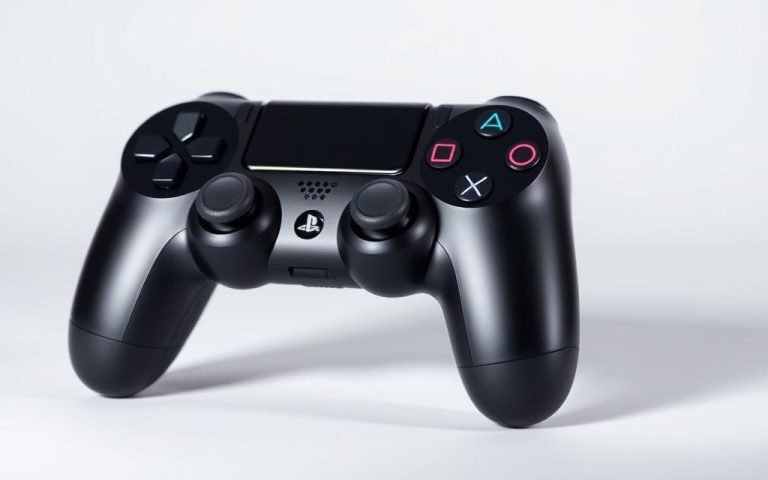
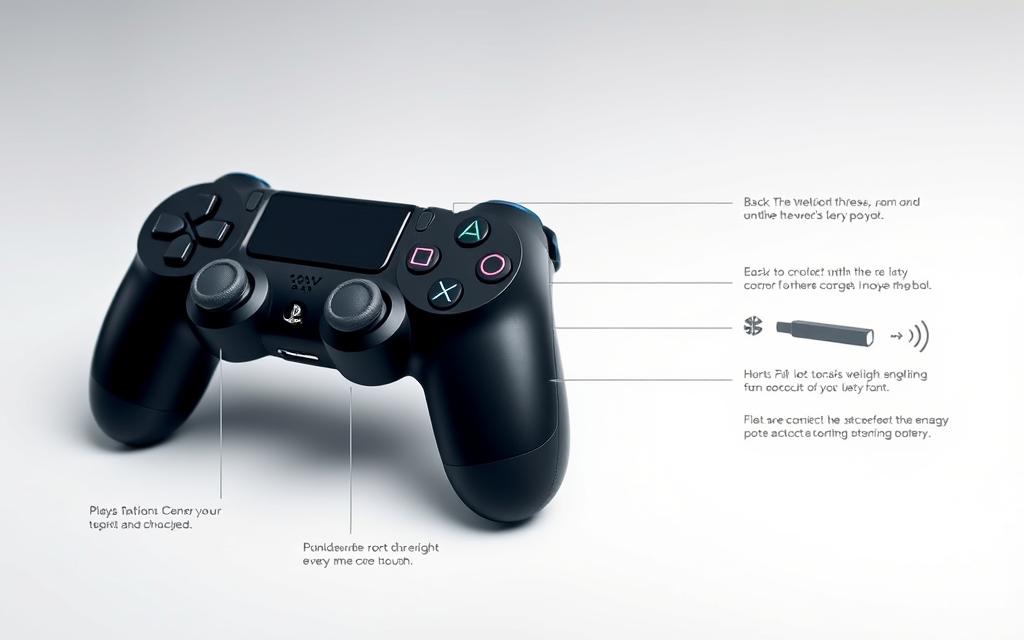
To get the most out of your gaming experience, it’s essential to understand the components and functionality of your PS4 controller. The DualShock 4 controller is designed to provide an immersive gaming experience with its advanced features.
Key Components of the DualShock4 Controller
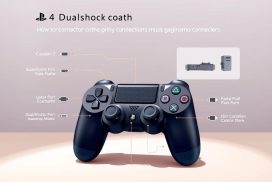
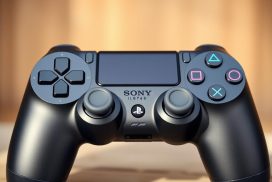
The DualShock 4 controller features several key components, including the light bar, which serves multiple functions. It indicates player numbers through different colors: blue for player 1, red for player 2, green for player 3, and pink for player 4. The light bar also shows when the controller is charging by turning yellow.
Related:

Battery Life and Charging Basics
The DualShock 4 controller has a battery life of up to 8 hours, allowing for extended gaming sessions. The controller charges via a micro-USB port and can be charged while in use or in rest mode. Understanding the battery life and charging process is crucial for uninterrupted gaming.
As emphasized by gaming experts, “A well-maintained controller is key to a seamless gaming experience.” Proper care and understanding of the controller’s components can significantly enhance your gaming sessions.
How to Connect PS4 Remotes to Your Console
To begin playing games on your PS4, you must first connect your controller to the console. This process is straightforward and requires a few simple steps.
Connecting a Controller for the First Time
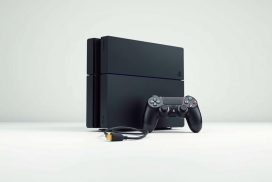
To connect a new PS4 controller, start by turning on your PS4 console. Then, use a micro-USB cable to connect the DualShock4 controller to the console. Press the central PS button on the controller to activate it. The light bar on the controller will illuminate, indicating a successful connection. At this point, you can unplug the USB cable and use the controller wirelessly.
Connecting Additional Controllers
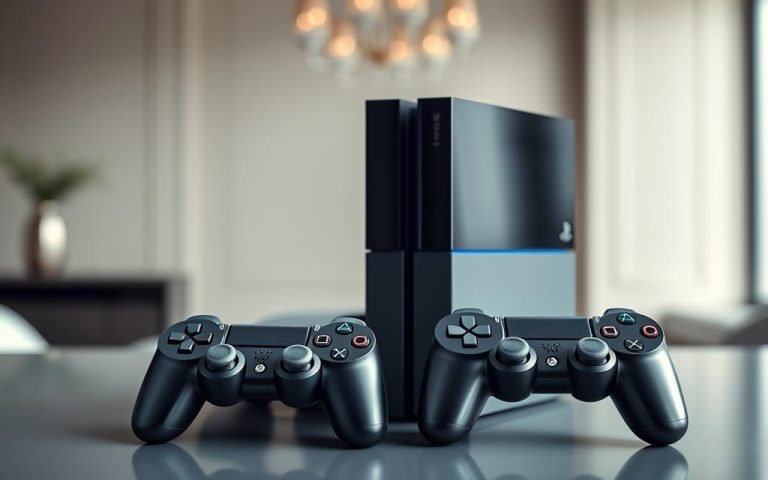
For additional controllers, the process is similar. Each controller needs to be connected via USB cable initially and assigned to a user profile. You can connect up to four controllers to a single PS4 console, with each controller assigned a different color on the light bar for identification.
Checking Controller Connection Status
To check if your controller is properly connected, look at the light bar. A solid color indicates a successful connection, while a blinking light may indicate pairing mode or low battery. You can also check the connection status in the PS4 system menu under Devices > Bluetooth Devices.
Troubleshooting PS4 Controller Connection Issues
When your PS4 controller won’t connect, it can be frustrating, but there are several troubleshooting steps you can take. The first step is to identify the underlying cause of the issue.
Common Reasons Why Controllers Won’t Connect
Several common issues can prevent your PS4 controller from connecting properly to your console. These include depleted batteries, interference from other Bluetooth devices, or previous pairing with another device.
- Depleted batteries can prevent wireless connection. Connect your controller via USB to ensure it has sufficient charge.
- Distance and obstacles can affect Bluetooth connectivity. Ensure your controller is within 10 feet of the console.
- Previous pairing with another device can cause connection issues. Re-pair your controller through the Bluetooth settings menu.
Re-Pairing Your Controller to the PS4
To re-pair your controller, navigate to Settings > Devices > Bluetooth Devices, select the inactive controller, press the Options button, and select “Forget Device.” Then, turn off your PS4, connect the controller via USB, turn the console back on, and press the PS button.
Fixing Controller Buttons That Aren’t Working
If specific buttons aren’t responding, they may need cleaning. Use a microfiber cloth slightly dampened with rubbing alcohol to gently clean around the affected buttons.
| Issue | Troubleshooting Step |
|---|---|
| Controller won’t connect wirelessly | Connect via USB to charge |
| Controller previously paired with another device | Re-pair through Bluetooth settings |
| Buttons not responding | Clean with microfiber cloth and rubbing alcohol |
How to Reset Your PS4 Controller
To get your PS4 controller working properly again, you may need to reset it. Resetting can resolve persistent connectivity issues by returning the controller to its factory settings.
Performing a Soft Reset
A soft reset is the simplest method to resolve minor connection glitches. To do this, press and hold the PS button on your controller for about 10 seconds until it turns off completely. Then, restart your console before attempting to reconnect.
Performing a Hard Reset with the Reset Button
For more stubborn issues, a hard reset may be necessary. To perform a hard reset, you’ll need a small tool like an unfolded paperclip. First, turn off your PS4 and unplug it along with your internet router. Then, flip the controller over and locate the small hole near the L2 button. Insert the paperclip into the hole and press and hold the reset button for 3-5 seconds (ideally 10 seconds). After resetting, reconnect the controller to the PS4 via USB cable and press the PS button.
When to Consider Controller Replacement
If your controller still experiences issues after multiple reset attempts, has physical damage, or shows signs of battery degradation (holding charge for less than 2 hours), it may be time to consider replacement. Some key signs that indicate the need for replacement include:
- Persistent connectivity issues despite multiple resets
- Visible physical damage to the controller
- Battery life significantly reduced
Remember, performing a hard reset won’t delete any game data or console settings; it only affects the controller’s connection settings.
Connecting PS4 Controllers to Other Devices
The DualShock4 controller is not limited to the PS4 console, offering versatility across various devices. You can connect it to PCs, Android smartphones, and iOS devices, expanding your gaming possibilities.
Connecting to a PC
To connect your PS4 controller to a PC via Bluetooth, start by going to your Windows system settings and selecting “Bluetooth and other devices” from the Devices menu. Click “Add Bluetooth or other device” and put your controller in pairing mode by holding the Share and PS buttons simultaneously until the light bar blinks blue. Then, select your controller from the list of available devices on your PC.
Alternatively, you can use a micro-USB cable for a wired connection. Many games will recognize the controller automatically, but some may require additional software like DS4Windows.
Pairing with Android Smartphones
Pairing your PS4 controller with an Android device is straightforward. Put the controller in pairing mode by holding the Share and PS buttons, then find and select “Wireless Controller” in your Android device’s Bluetooth settings.
Connecting to iPhones and iPads
For iOS devices running iOS 13 or later, the process is similar. Put the controller in pairing mode and find it in your device’s Bluetooth settings. However, note that compatibility is limited to games that support controller input.
When switching your controller between different devices, you’ll need to repeat the pairing process each time, as the controller remembers only its last connected device.
Conclusion
In summary, the steps to connect your PS4 remote to your console are easy to follow. By understanding how to pair your controller initially and troubleshoot common issues, you can enjoy a seamless gaming experience. Regular maintenance tips, such as proper charging habits and cleaning, will extend the lifespan of your controller.
Additionally, the versatility of the PS4 controller allows it to be used across multiple platforms. For persistent issues, Sony’s customer support can provide assistance. Keeping your system updated can prevent connection problems, and investing in a controller charging station can be beneficial for households with multiple controllers.
FAQ
What is the first step to connect a PS4 controller to the console?
To start, make sure your PS4 is turned on. Then, use a USB cable to connect the controller to the console. This initial connection is necessary for pairing the devices.
How do I know if my PS4 controller is connected via Bluetooth?
When the controller is successfully paired, the light bar on the DualShock 4 will be steady, indicating a stable Bluetooth connection. You can then use the controller wirelessly.
Why is my PS4 controller not connecting to the console?
Common issues include a dead battery, faulty USB cable, or interference from other devices. Try re-pairing the controller or checking the connection status in the PS4 settings menu.
Can I connect multiple controllers to my PS4?
Yes, you can connect up to four controllers to a single PS4 console. Simply pair each additional controller using the same method as the first.
How do I reset my PS4 controller?
To perform a soft reset, simply turn off the PS4 and then turn it back on. For a hard reset, locate the small reset button on the back of the controller and press it with a pin.
Can I use my PS4 controller with devices other than the PS4 console?
Yes, the DualShock 4 controller can be connected to PC, Android smartphones, and some other devices via Bluetooth or USB. Check the device’s settings to ensure compatibility.
What should I do if my PS4 controller’s buttons are not working properly?
Try re-pairing the controller or performing a reset. If the issue persists, you may need to replace the controller or check for software updates on your PS4.