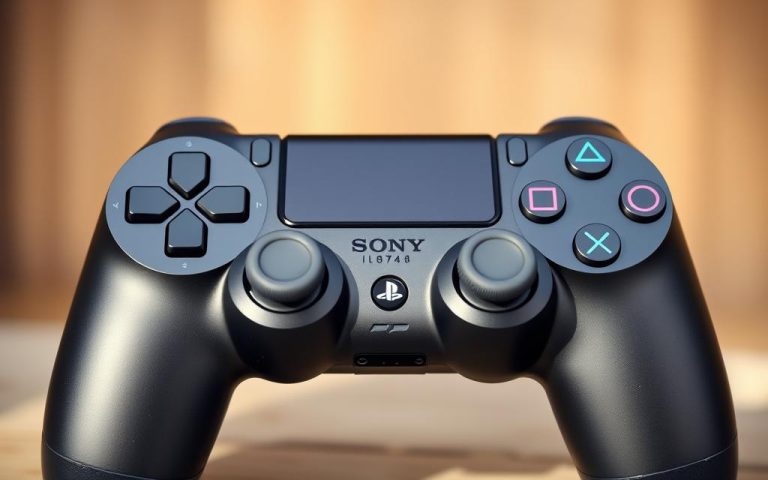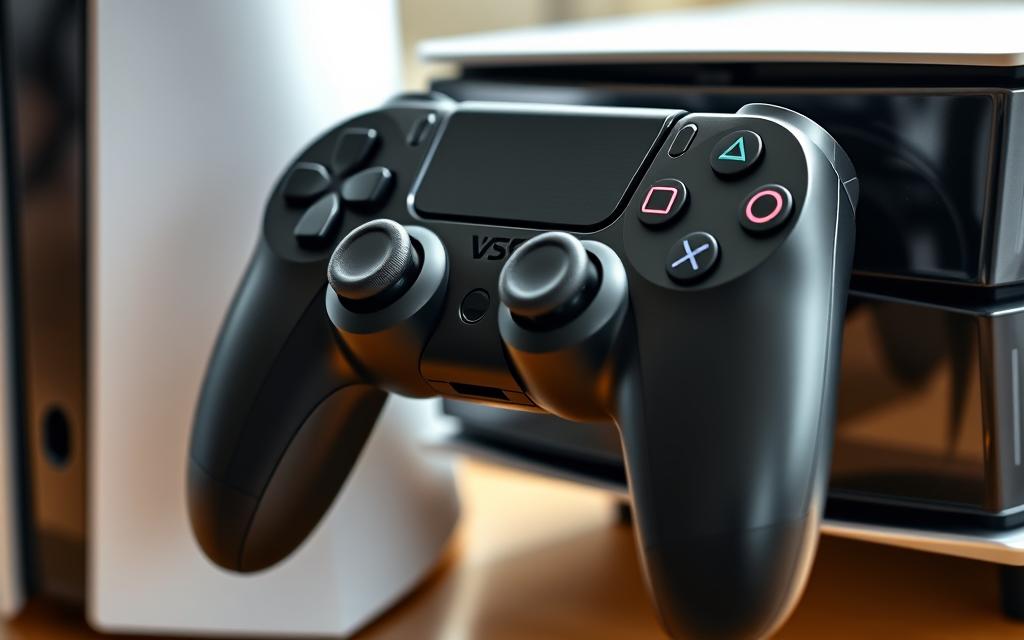
Step-by-Step Guide: How to connect ps4 controller to ps5
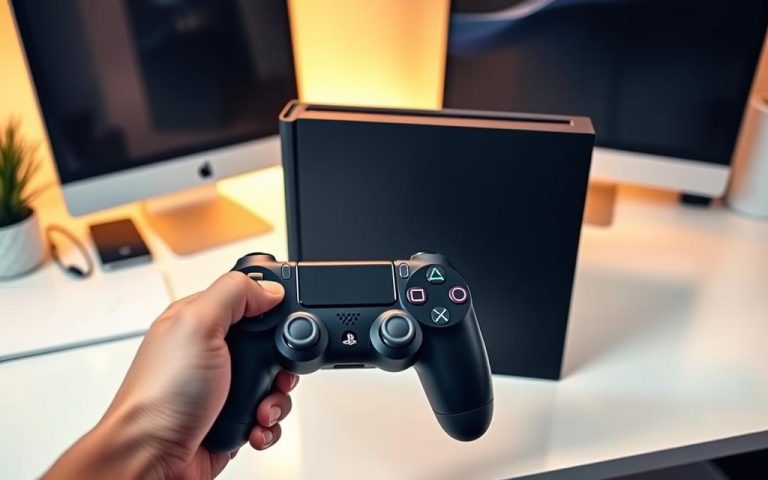
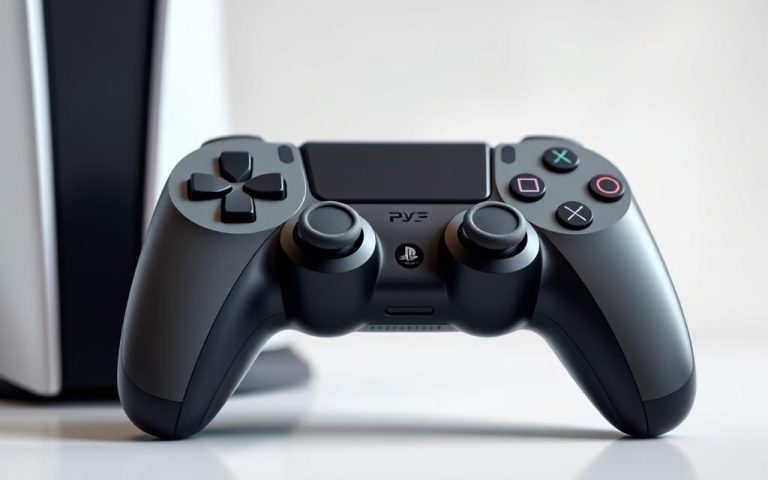
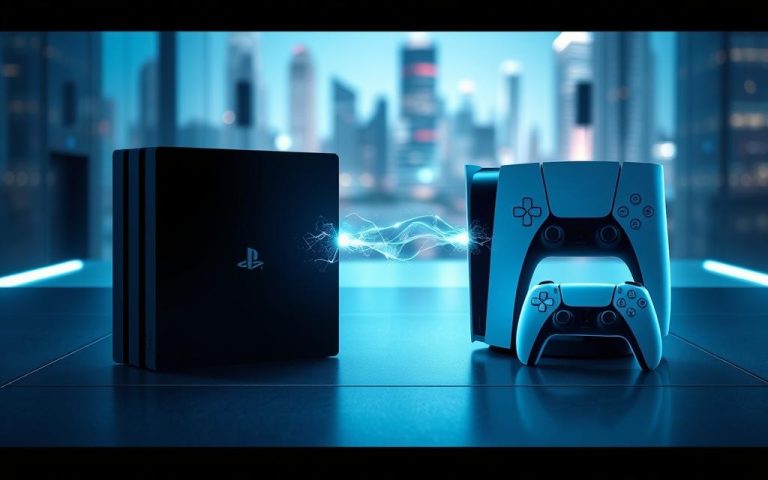
The arrival of the PlayStation 5 has brought significant advancements in gaming technology, offering enhanced graphics and innovative features. However, many gamers who already own DualShock 4 controllers for their PS4 consoles wonder if they can use them on their new PS5. The good news is that it is possible, albeit with some limitations.
Using your existing PS4 controller with the PS5 can be convenient, especially for playing backward-compatible games or using Remote Play. This guide will walk you through the process, exploring both wired and wireless connection methods, and discuss the compatibility limitations between PS4 controllers and PS5 games.
By understanding the constraints and capabilities, you can maximize the use of your existing controllers without needing to purchase additional DualSense controllers.
Understanding PS4 Controller Compatibility with PS5
PS4 controllers are compatible with the PS5, but only to a certain extent, and it’s vital to know the limitations. The good news is that you can use your DualShock4 or Nacon controllers for PlayStation to play backward-compatible PS4 games on your PS5.
What You Need to Know Before Starting
Before connecting your PS4 controller, ensure it’s in good working condition with a charged battery. The PS5 can recognize up to four controllers simultaneously, making it ideal for multiplayer gaming sessions using PS4 games. It’s essential to understand that the PS4 controller’s compatibility is limited to PS4 games, and you won’t be able to use it for PS5-exclusive games.
Related:

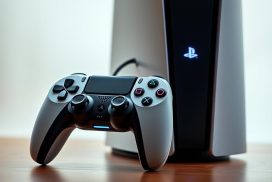
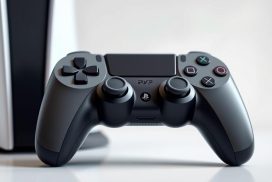

PS4 Controller Limitations on PS5
The DualShock4 controller can only be used to play backward-compatible PS4 games on the PS5. Sony implemented these limitations because PS5 games are designed to take advantage of the DualSense controller’s advanced features. The PS5 system is optimized for the DualSense controller, which offers enhanced gaming experiences with its haptic feedback and adaptive triggers. Key limitations include:
- PS4 controllers are not compatible with PS5-exclusive games.
- The PS5’s advanced features are not supported by PS4 controllers.
- While PS4 games work on PS5, you might miss out on performance improvements offered by the DualSense controller.
How to Connect PS4 Controller to PS5 via USB Cable
A USB cable provides the most reliable connection between your PS4 controller and PS5. This method is straightforward and requires minimal setup.
Required Materials
To connect your PS4 controller to your PS5, you’ll need a working micro-USB cable that supports both data transfer and charging. Ensure the cable is compatible with the PS5’s USB ports. The cable should be in good condition to avoid any connectivity issues.
Step-by-Step Connection Process
First, make sure your PS5 console is turned on. Then, connect one end of the USB cable to your PS4 controller and the other end to the PS5. Press the PS button on your controller to initiate the pairing process. The PS5 system will automatically detect and register your PS4 controller. This process is quick and straightforward, providing a stable connection.
Verifying Successful Connection
Once connected, verify that your PS4 controller is working properly with your PS5. Check that the controller responds to inputs and is recognized in the PS5’s accessories menu. This wired connection method also charges your PS4 controller, ensuring you don’t run out of battery during gameplay. After initial pairing, you can disconnect the cable and use the controller wirelessly if you prefer.
How to Connect PS4 Controller to PS5 via Bluetooth
Connecting your PS4 controller to your PS5 via Bluetooth is a straightforward process that offers the convenience of a wireless gaming experience. This method eliminates the need for a USB cable, providing more flexibility during gameplay.
Accessing PS5 Bluetooth Settings
To start, navigate to the “Settings” menu on your PS5. From there, select “Accessories” and then “Bluetooth Accessories” to view available devices. This step is crucial for initiating the Bluetooth connection process.
Putting Your PS4 Controller in Pairing Mode
To put your PS4 controller in pairing mode, simultaneously press and hold the SHARE and PS buttons until the controller’s light bar starts flashing rapidly. This indicates that the controller is searching for a device to pair with.
Completing the Bluetooth Connection
Once your PS4 controller is in pairing mode, it should appear in the list of available Bluetooth devices on your PS5. Select the controller from this list to initiate the pairing process. After a few seconds, the controller’s light bar will stop flashing and remain steadily lit, indicating a successful connection. You can then test the controller by navigating the PS5 menu to ensure it’s working properly.
It’s worth noting that while Bluetooth connectivity offers more convenience, it may introduce slightly more input lag compared to a wired USB connection. Competitive gamers should consider this when choosing their connection method.
Playing PS4 Games on PS5 with Your DualShock 4
The PS5’s backward compatibility feature allows gamers to enjoy their PS4 games using the DualShock4 controller. This compatibility means that you can continue playing your favorite PS4 games on the new console without having to change controllers.
Understanding Backward Compatibility
The PS5 is designed to be backward compatible with the overwhelming majority of PS4 games. This means you can play thousands of PS4 games on the PS5 using your DualShock4 controller, either from physical discs or digital downloads in your library. Understanding how backward compatibility works is crucial to maximizing your gaming experience on the PS5.
Which PS4 Games Work Best
Certain PS4 games perform exceptionally well on the PS5, benefiting from the console’s increased processing power even when using the original DualShock4 controller. Games with unlocked frame rates or those that have received PS5 optimization patches typically show the most noticeable performance improvements. The PS5’s SSD also significantly reduces loading times for backward-compatible PS4 games.
https://www.youtube.com/watch?v=F2LLZQ3pGuE&pp=0gcJCfwAo7VqN5tD
Performance Improvements When Using PS4 Controllers on PS5
When playing PS4 games on the PS5 with your DualShock4 controller, you can expect several performance improvements. The PS5’s Game Boost feature can enhance the frame rate of compatible PS4 games to a smooth 60fps or higher. Additionally, the PS5’s SSD reduces loading times, making for a more streamlined gaming experience. While using your DualShock4, you won’t experience the haptic feedback and adaptive triggers available with the DualSense controller, but you’ll still enjoy a superior gaming experience compared to playing on the original PS4.
Using Remote Play to Enjoy PS5 Games with PS4 Controllers
Remote Play offers a flexible solution for playing PS5 games with your PS4 controller by streaming the game to another device like a smartphone, tablet, or computer.
Setting Up Remote Play on Your Devices
To set up Remote Play, first enable it on your PS5 by going to ‘Settings’, then ‘System’, and finally ‘Remote Play’. Turn on ‘Enable Remote Play’. Next, download the ‘PS Remote Play’ app on your chosen device, ensuring it’s connected to the same Wi-Fi network as your PS5.
Connecting Your PS4 Controller to Remote Play
To connect your PS4 controller, use a USB cable or pair it via Bluetooth for PC/Mac. For smartphones/tablets, pair the controller via Bluetooth in your device’s settings. This allows you to control PS5 games that wouldn’t normally support the DualShock4.
Tips for Optimal Remote Play Experience
For the best Remote Play performance, ensure both your PS5 and streaming device are on the same network, preferably via wired connections or strong Wi-Fi signals. Customize Remote Play settings like resolution and frame rate to balance visual quality and performance based on your network capabilities. A minimum network speed of 15 Mbps is recommended for standard streaming.
By following these steps, you can enjoy PS5 games with your PS4 controller using Remote Play, offering a convenient workaround for those without a PS5 controller or preferring the DualShock4.
Troubleshooting Common Connection Issues
Encountering issues with your PS4 controller on PS5 can be frustrating, but there are several troubleshooting steps you can take. Connection problems can arise from various sources, including hardware issues, software glitches, or simple configuration mistakes.
Controller Won’t Connect or Pair
If your PS4 controller won’t connect to your PS5, first ensure it’s sufficiently charged. Try charging it for at least 30 minutes using a working USB cable. If that doesn’t work, attempt a manual reset by pressing the small reset button on the back of the controller for about 5 seconds using a paperclip. Then, try pairing it again.
Controller Disconnects Frequently
Frequent disconnections can be caused by interference or distance issues. Ensure you’re within 10 meters of the PS5 and that there are no obstacles between the controller and the console. Other Bluetooth devices nearby can also cause interference, so try turning them off temporarily to improve stability.
Buttons Not Responding Properly
If the buttons on your PS4 controller aren’t responding correctly, try cleaning the controller with compressed air to remove any dust or debris that might be affecting the button contacts. This simple step can often resolve the issue and restore normal functionality.
By following these troubleshooting steps, you should be able to resolve common connection issues with your PS4 controller on your PS5.
Conclusion
The PS5’s ability to support PS4 controllers offers a cost-effective gaming solution. By using your existing DualShock4 controllers, you can enjoy backward-compatible games without needing additional DualSense controllers. Both USB and Bluetooth connection methods provide reliable ways to use your PS4 controller with the PS5. Understanding the troubleshooting steps for common issues ensures a smooth gaming experience. As Sony continues to support the PS5, the functionality of PS4 controllers may evolve, potentially offering expanded capabilities.
FAQ
Can I use my PS4 controller to play PS5 games?
The PS4 controller, also known as the DualShock 4, is compatible with the PS5, but only for playing PS4 games through backward compatibility. For PS5 games, you need to use the DualSense controller.
How do I put my PS4 controller in pairing mode?
To put your PS4 controller in pairing mode, press and hold the PS button and the Share button simultaneously until the light bar starts flashing.
Can I connect my PS4 controller to PS5 via USB?
Yes, you can connect your PS4 controller to PS5 using a USB cable. Simply plug the USB cable into both devices, and the PS5 should recognize the controller.
Why is my PS4 controller not connecting to PS5 via Bluetooth?
If your PS4 controller is not connecting to PS5 via Bluetooth, ensure that it’s in pairing mode and that the PS5 is set to discover new devices. Restarting both devices may also resolve the issue.
Are there any compatibility issues with using a PS4 controller on PS5?
While the PS4 controller works well with PS4 games on PS5, some features like haptic feedback and adaptive triggers are not supported. Additionally, PS5 games require the DualSense controller.
Can I use Remote Play with my PS4 controller to play PS5 games?
Yes, you can use Remote Play with your PS4 controller to play PS5 games on other devices, but you’ll need to set up Remote Play on your PS5 and connect your PS4 controller to the device you’re streaming to.
What should I do if my PS4 controller disconnects frequently from PS5?
If your PS4 controller disconnects frequently, try restarting both devices, checking for interference from other Bluetooth devices, and ensuring that your PS5 is updated to the latest software.