Step-by-Step Guide: How to connect a ps4 controller to pc
Gaming on a PC can be more immersive with a PS4 controller, offering a comfortable experience. Many gamers prefer using a PlayStation controller over the traditional keyboard-mouse combo for certain games.
This comprehensive guide will walk you through the process of connecting your controller to your computer, exploring both wired and wireless options. You’ll learn about compatibility, driver issues, and how to customize your controller settings on Steam for an enhanced gaming experience.
By the end of this guide, you’ll be able to seamlessly use your PS4 controller with PC games across various platforms.
Understanding PS4 Controller Compatibility with PC
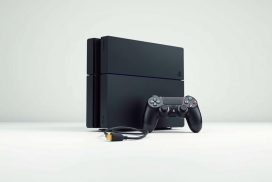
For PC gamers, the PS4 controller offers a more immersive gaming experience compared to traditional keyboard and mouse setups. The PS4 DualShock controller is designed to provide a comfortable gaming experience, and its compatibility with PC is increasingly being utilized.
Benefits of Using a PS4 Controller for PC Gaming
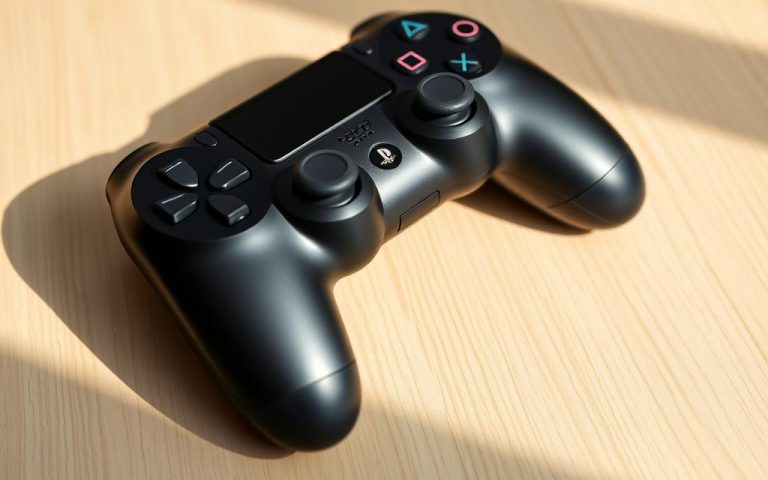
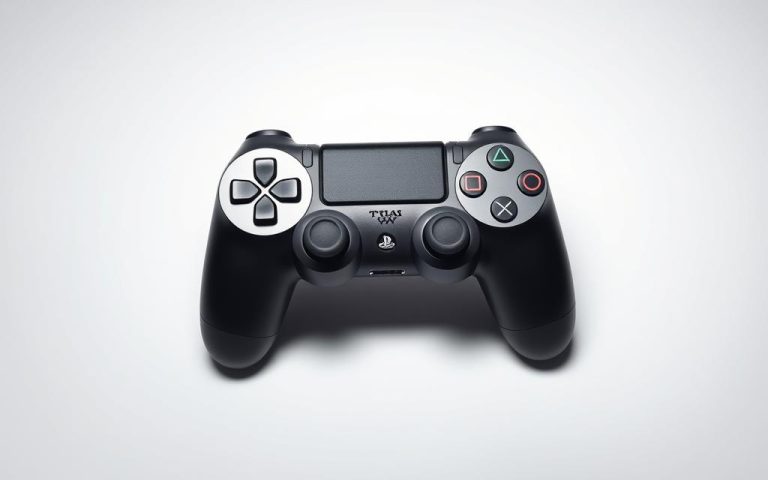
The PlayStation4 DualShock controller offers an ergonomic design and intuitive button layout that can significantly enhance your PC gaming experience. Its unique features like the touchpad, light bar, and motion controls can be utilized in compatible PC games for more immersive gameplay.
Related:

What You’ll Need Before Getting Started
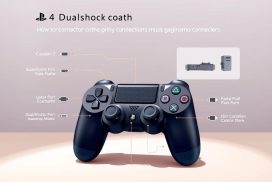
Before attempting to connect your controller, you’ll need to ensure your Windows PC meets the minimum requirements for either USB or Bluetooth connectivity. For USB connections, you’ll need a micro-USB to USB-A cable. For Bluetooth connections, your computer must have built-in Bluetooth capability or you’ll need to purchase a Bluetooth adapter.
| Connection Method | Required Equipment |
|---|---|
| USB | Micro-USB to USB-A cable |
| Bluetooth | Built-in Bluetooth or Bluetooth adapter |
Understanding the compatibility landscape is crucial as not all PC games natively support PS4 controllers without additional software or configuration. Some games and platforms, like Steam, offer native PS4 controller support, while others may require additional software like DS4Windows.
How to Connect a PS4 Controller to PC via USB Cable
Using a USB cable to link your PS4 controller to your PC is the most reliable method for a seamless gaming experience. This method is straightforward and offers increased compatibility, making it ideal for gamers who want to ensure their controller works with their favorite games without any hassle.
Required Equipment for Wired Connection
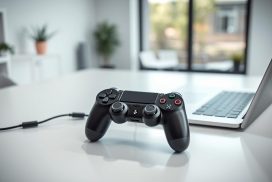
To establish a wired connection, you’ll need a quality micro-USB to USB-A cable. The same cable used to charge your PS4 controller will work perfectly for this purpose. Ensure the cable is in good condition, with no signs of fraying or damage, as this can cause connection issues.
Step-by-Step USB Connection Process
Begin by plugging one end of the USB cable into your PS4 controller and the other into an available USB port on your computer. Windows 10 and 11 typically recognize the PS4 controller automatically, listing it as “Wireless Controller” in your devices list. If your PC doesn’t recognize the controller immediately, try using a different USB port, preferably a USB 2.0 port, which often has better compatibility with game controllers.
Advantages and Limitations of Wired Connection
The primary advantage of a wired connection is zero input lag, making it ideal for competitive gaming. However, limitations include restricted movement due to the cable length and the potential for cable damage during intense gaming sessions. Despite these limitations, a wired connection remains a popular choice among gamers due to its reliability and simplicity.
Connecting Your PS4 Controller via Bluetooth
Connecting your PS4 controller to your PC via Bluetooth is a straightforward process that offers the convenience of wireless gaming. This method allows you to enjoy your games without the restriction of a cable, providing a more flexible gaming experience.
Preparing Your Controller for Bluetooth Pairing
To start, you need to put your PS4 controller into pairing mode. This is done by simultaneously holding down the SHARE and PS buttons until the light bar starts flashing rapidly. This indicates that the controller is discoverable by your PC.
Before proceeding, ensure your PC has Bluetooth capability. If not, you can use a USB Bluetooth adapter, which is an affordable solution typically costing between $10-20.
Detailed Bluetooth Connection Steps for Windows
For Windows 10/11 users, the process is as follows:
- Go to “Settings” > “Devices” > “Bluetooth & other devices.”
- Click “Add Bluetooth or other device” and select “Bluetooth.”
- From the list of available devices, choose “Wireless Controller.”
- If prompted for a PIN code, enter “0000.”
Troubleshooting Bluetooth Connection Issues
Common issues include interference from other devices, Bluetooth driver problems, or controller battery issues. To resolve these, you can try resetting your controller, updating your Bluetooth drivers, or moving closer to your PC during pairing.
| Issue | Solution |
|---|---|
| Interference from other devices | Move closer to your PC or switch off nearby wireless devices |
| Bluetooth driver problems | Update your Bluetooth drivers to the latest version |
| Controller battery issues | Charge your controller or replace the batteries if necessary |
Using Software to Enhance PS4 Controller Compatibility
To maximize your PS4 controller’s potential on PC, consider utilizing software solutions that enhance compatibility. Software plays a vital role in ensuring a seamless gaming experience by making your PS4 controller compatible with a wide range of PC games.
Configuring Your PS4 Controller with Steam
Steam offers native support for PS4 controllers, making it easy to use your controller with thousands of games in the Steam library. To enable this support, open Steam and navigate to “Settings” > “Controller” > “General Controller Settings.” Check the “PlayStation Configuration Support” box to allow Steam to recognize your PS4 controller.
With Steam’s support enabled, your PS4 controller inputs will be translated into a format that all Steam games can understand, even those designed exclusively for keyboard and mouse or Xbox controllers.
DS4Windows Installation and Configuration
For non-Steam games, DS4Windows is a valuable solution. It allows your PS4 controller to emulate an Xbox controller, which has broader compatibility with PC games. To install DS4Windows, download the application from its official GitHub repository, extract the files, and run the installer.
- Download and install DS4Windows from the official site.
- Extract the downloaded file and launch DS4Windows.exe.
- Follow the instructions to install the necessary drivers.
Customizing Controller Settings
Both Steam and DS4Windows offer extensive customization options for your PS4 controller. You can remap buttons, adjust sensitivity, create custom profiles for different games, and even control the light bar color and brightness. Advanced users can create complex configurations with macros and specialized inputs for different game genres.
Conclusion: Getting the Most from Your PS4 Controller on PC
Using a PS4 controller on your PC opens up new possibilities for gaming comfort and control, particularly for games originally designed with console controllers in mind. Throughout this article, we’ve explored multiple connection methods, including USB for reliability and Bluetooth for wireless freedom, ensuring you can choose the best option for your gaming setup.
We’ve also discussed software solutions like Steam’s native support and DS4Windows that expand compatibility and customization options, allowing your PS4 controller to work with virtually any PC game. To get the most out of your controller, consider experimenting with button mappings and sensitivity settings to find your optimal setup.
By following these steps and tips, you can enhance your gaming experience and enjoy your PS4 controller on your PC to the fullest. For high-quality gaming accessories, consider exploring options from reputable brands like Nacon.
FAQ
Is my PS4 controller compatible with my Windows PC?
Yes, most PS4 controllers are compatible with Windows PCs. You can connect via USB or Bluetooth to start gaming.
What are the benefits of using a PS4 controller for PC gaming?
Using a PS4 controller for PC gaming offers a more immersive gaming experience and is often more comfortable than traditional PC gaming controllers.
Why isn’t my PS4 controller connecting to my PC via Bluetooth?
Ensure your controller is in pairing mode and that your PC’s Bluetooth is enabled. Restarting both devices can also resolve connectivity issues.
Can I customize the button mapping on my PS4 controller when using it with my PC?
Yes, you can customize button mapping using software like DS4Windows, allowing for a more personalized gaming experience.
Do I need to install additional software to use my PS4 controller with Steam?
No, Steam has built-in support for PS4 controllers. Simply enable the controller in Steam settings to start using it.
What should I do if my PS4 controller is not recognized by my PC when connected via USB?
Try using a different USB port or cable. If issues persist, reinstalling the controller drivers may resolve the problem.
Can I use my PS4 controller wirelessly with my PC?
Yes, you can use your PS4 controller wirelessly by pairing it via Bluetooth. Ensure your PC has Bluetooth capabilities.