Step-by-Step Guide: How to reset ps4 controller
Encountering issues with your PS4 controller can be frustrating, especially when you’re in the middle of a gaming session. Fortunately, resetting your controller can often resolve common problems and restore functionality.
Resetting your PS4 controller is a straightforward process that can address various issues such as connection problems, unresponsive buttons, and other malfunctions. Whether you’re using a wireless or wired connection with your console, this guide will walk you through the steps to reset your device.
In this comprehensive guide, we’ll cover both soft and hard reset methods to help you troubleshoot and fix problems with your controller and devices. By following these steps, you can ensure a smooth gaming experience without interruptions.
Understanding PS4 Controller Issues
PS4 controller issues can be frustrating, but understanding the root causes is the first step towards resolving them. Various factors can contribute to controller malfunction, affecting your gaming experience.
Common Signs of Controller Problems
Identifying the symptoms is crucial. Common signs include connection issues, joystick drift, and unresponsive buttons. These problems can occur due to software glitches, interference from other devices, or physical damage to the controller.
Related:

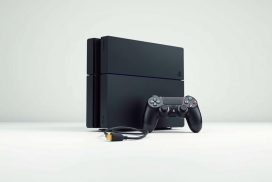
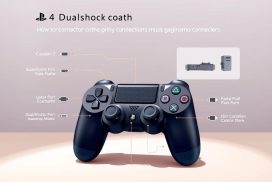


Why PS4 Controllers Need Resetting
Resetting your PS4 controller can resolve many of these issues. Reasons for resetting include software glitches, internal memory corruption, and battery calibration issues. When you reset your controller, it clears custom settings and requires reconnection via USB. This process can restore your controller’s functionality, ensuring a smoother gaming experience.
How to Soft Reset Your PS4 Controller
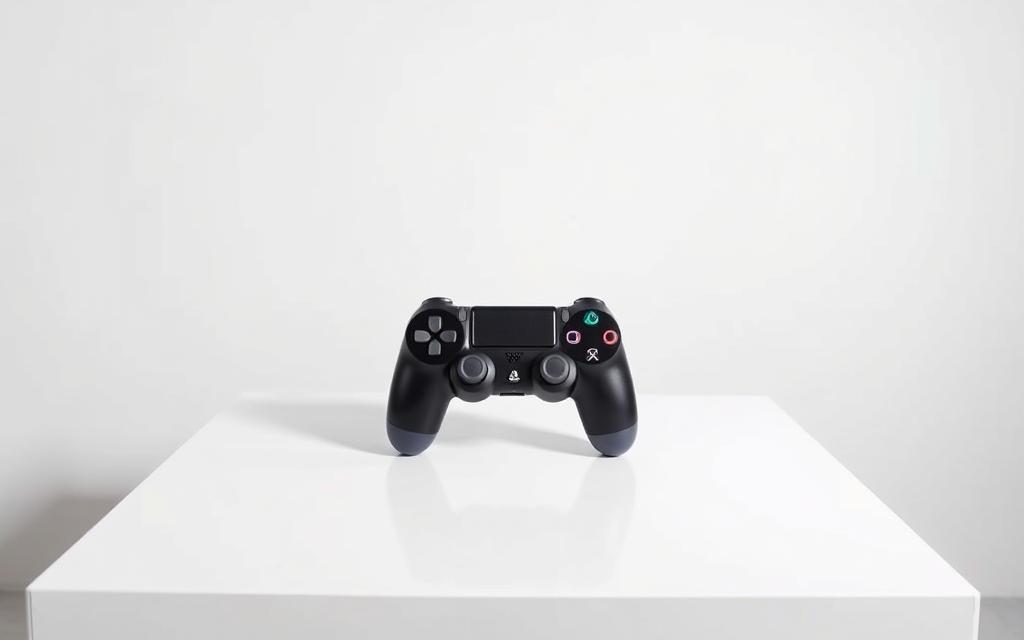
If your PS4 controller is malfunctioning, a soft reset can be an effective solution. A soft reset is a troubleshooting technique that can resolve connectivity issues and other problems without losing any data.
What is a Soft Reset?
A soft reset is a process that restarts your PS4 controller and re-establishes its connection to the console. It’s a simple and safe way to troubleshoot issues without affecting your saved games or settings. By performing a soft reset, you can resolve problems such as lag, disconnections, or unresponsive buttons.
Step-by-Step Soft Reset Process
To soft reset your PS4 controller, follow these steps:
- Begin by navigating to the PS4 home screen and accessing the Settings menu from the function area at the top of the screen.
- Within Settings, scroll down to select “Devices” and then choose “Bluetooth Devices” to view all connected controllers and peripherals.
- Identify the controller you wish to reset in the list – the currently active controller will have a green dot beside it, while others will not.
- Select the problematic controller from the list, then press the Options button on your working controller to bring up additional menu choices.
- Choose “Forget Device” from the menu to remove the controller from your PS4’s memory, effectively breaking the existing connection.
- Power off your PS4 completely, then connect the controller you want to reset to the PS4 using a USB cable. Press the PS button on the controller to resync it with the console.
By following these steps, you can successfully soft reset your PS4 controller and resolve common issues.
How to Hard Reset PS4 Controller
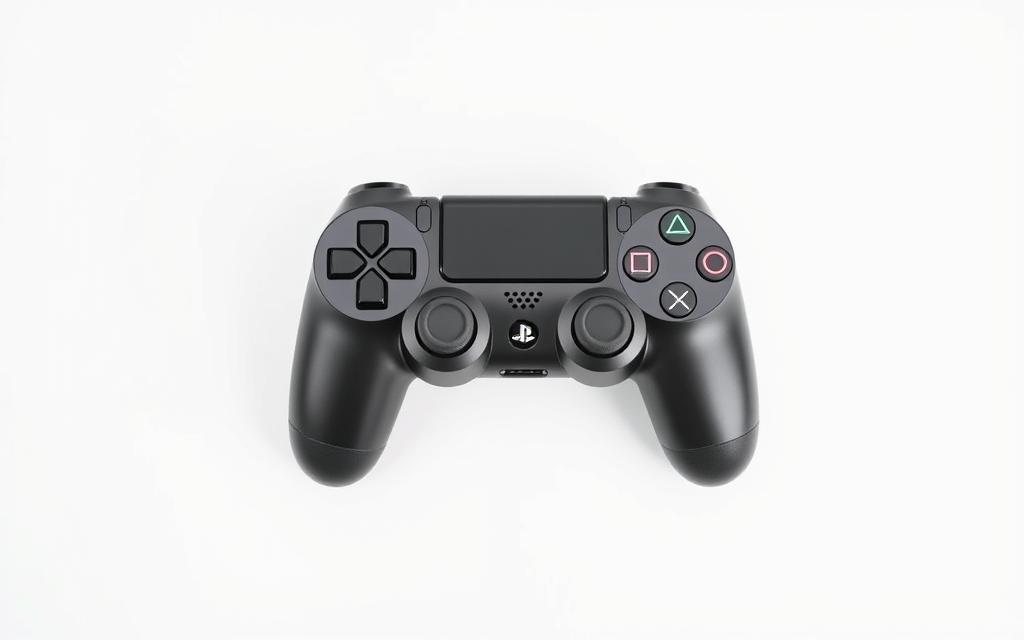
To restore your PS4 controller to its default settings, you can perform a hard reset. This process is useful when dealing with a malfunctioning controller.
When to Perform a Hard Reset
A hard reset is necessary when your PS4 controller is experiencing persistent issues that a soft reset cannot resolve. If your controller is freezing, not responding, or has other significant problems, a hard reset may be the solution.
Hard Reset Instructions
To hard reset your PS4 controller, start by completely powering down your PS4 console. Then, disconnect the controller from any cables. Locate the small reset button hole on the back of the controller near the L2 shoulder button. Prepare a small tool like an unfolded paper clip or SIM ejector tool that can fit into the reset hole. Insert the tool into the hole and press and hold the button for at least 5-7 seconds. After completing the reset, connect your controller to the PS4 console via a USB cable. Power on your PS4 while the controller remains connected via USB to establish a fresh hardware connection. Press the PS button on your controller to initiate the pairing process.
Your controller has now been restored to factory settings, clearing any custom configurations or problematic settings. Test the controller thoroughly to ensure all buttons, joysticks, and features are functioning properly after the reset.
Additional Troubleshooting Tips
When dealing with a malfunctioning PS4 controller, it’s essential to explore additional troubleshooting tips to resolve the issue. This section will cover various aspects, including charging and power issues, connection problems, and testing your controller functionality.
Charging and Power Issues
Charging issues can often be the culprit behind a malfunctioning PS4 controller. Ensure that your controller is properly connected to the PS4 or a power source using a USB cable. Try using a different USB port or cable to rule out any issues with the current setup. If the controller is not holding a charge, it may be a sign of a faulty battery that needs replacement.
Connection Problems
Connection issues can cause your PS4 controller to malfunction. Try resetting the controller and then pairing it again with your PS4. Ensure that there are no other devices interfering with the connection. You can also try restarting your PS4 to see if it resolves the issue.
Testing Your Controller Functionality
To diagnose issues with your PS4 controller, you can test it using a Windows computer. Connect the controller to the computer via a USB cable, then navigate to the Control Panel and select “Game Controller Settings.” Here, you can test the functionality of your controller, including buttons, joysticks, and other features. This can help identify specific hardware issues that may require targeted repairs.
| Test Type | Description | Expected Outcome |
|---|---|---|
| Button Testing | Press each button to test responsiveness | All buttons should register correctly |
| Joystick Testing | Move joysticks in all directions | Joysticks should respond accurately |
| Vibration Testing | Test vibration motors | Vibration should be noticeable |
Conclusion
Ultimately, resetting your PS4 controller can be a simple yet effective solution to various controller issues. Both soft and hard reset methods serve different purposes, addressing minor connection issues and more persistent problems, respectively. Regular maintenance, including occasional resets, can extend the lifespan of your PS4 controller and maintain optimal performance. For persistent issues, consider checking the reset guide or exploring repair options on specialized websites. Proper care and regular updates can prevent many common issues, ensuring the best gaming experience.
FAQ
What should I do if my PS4 controller is not connecting to the console?
Try connecting the controller to the PS4 using a USB cable. If it still doesn’t connect, you may need to perform a soft or hard reset.
How do I perform a soft reset on my PS4 controller?
To soft reset your PS4 controller, press and hold the PS button and the Share button simultaneously for a few seconds until the light bar on the controller starts to flash.
When should I perform a hard reset on my PS4 controller?
You should perform a hard reset if your controller is experiencing persistent issues, such as freezing or not responding, and a soft reset doesn’t resolve the problem.
Can I reset my PS4 controller without a USB cable?
Yes, you can reset your PS4 controller without a USB cable by using the reset button on the back of the controller. However, a USB cable is required to connect the controller to the PS4 console.
Why is my PS4 controller not charging?
If your PS4 controller is not charging, try using a different USB cable or charging port. You can also try resetting the controller or checking for any debris or dust in the charging port.
How can I test my PS4 controller’s functionality?
To test your PS4 controller’s functionality, connect it to the PS4 console and check if it’s working properly. You can also try using the controller with a different game or application to see if the issue persists.