Step-by-Step Guide: How to pair ps4 controller to ps4
Syncing your DualShock 4 controller with your PlayStation 4 is a straightforward process that requires a USB to Micro-B cable. This comprehensive guide will walk you through the process, covering both wired and wireless connection methods to help you choose the most convenient option for your gaming setup.
Understanding the proper pairing procedure ensures optimal performance and prevents common connectivity issues. By the end of this guide, you’ll be able to confidently connect your controller and optimize its settings for the best gaming experience.
The guide includes detailed instructions for first-time setup, adding additional controllers for multiplayer gaming, and troubleshooting common pairing problems.
Understanding Your PS4 Controller
Familiarizing yourself with your PS4 controller’s components and capabilities can significantly enhance your gaming experience. The controller is the primary interface between you and your console, and understanding its features is crucial for optimal performance.
Related:

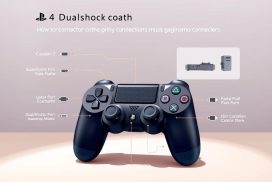
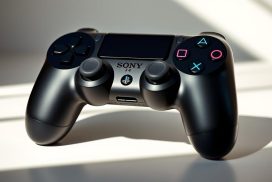
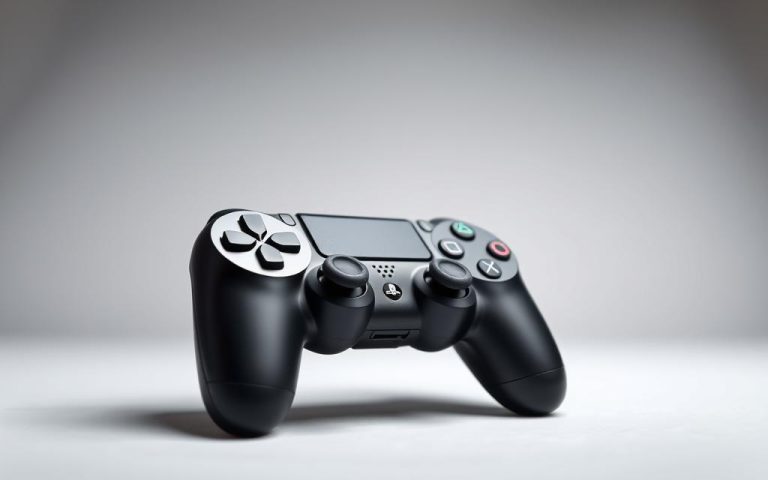
Components of the DualShock4 Controller
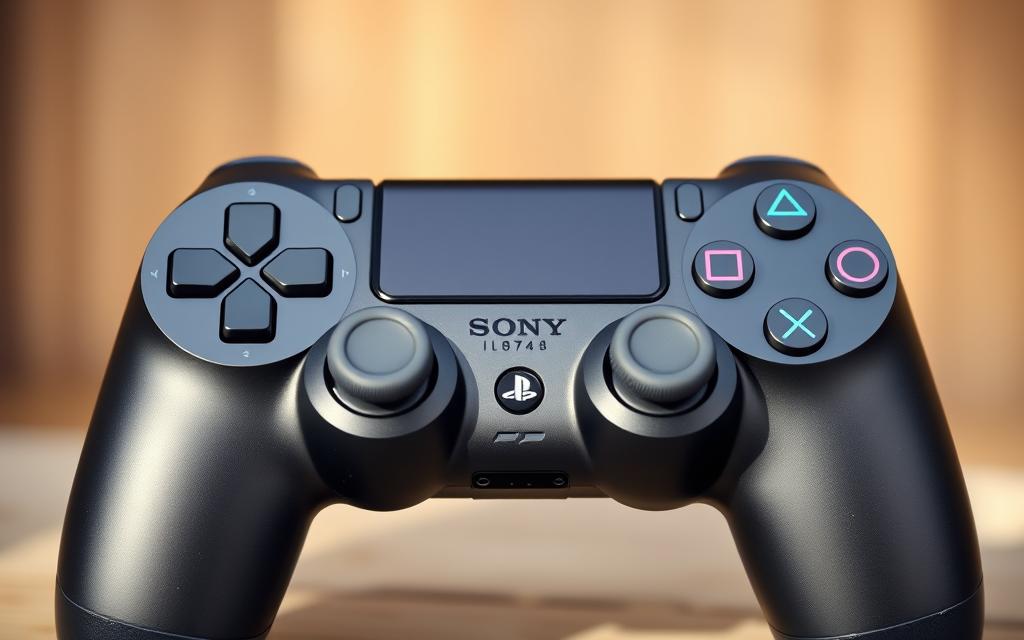
The DualShock 4 controller is equipped with a variety of features that enhance gameplay. These include:
- Touchpad: Allows for new types of interactions within games.
- Motion Controls: Enables players to control games through physical movements.
- Speaker and Audio Output: Provides an additional layer of immersion through sound effects and voice chat.
- Vibration: Offers haptic feedback, making the gaming experience more engaging.
When you’re having trouble with a controller not working wirelessly with your PS4, the usual issue with pairing is that the controller’s battery is undercharged. Ensuring your controller is adequately charged is the first step in troubleshooting connection problems.
The Importance of Proper Pairing
Proper pairing between your PS4 controller and console is crucial for ensuring responsive, lag-free gameplay without interruptions. A correctly paired wireless controller maintains a stable Bluetooth connection with your console, preventing signal interference from other wireless devices.
- Understanding the pairing process helps prevent frustration during gaming sessions.
- A properly paired controller ensures that features like motion controls and vibration function as intended.
- Correct pairing can extend the controller’s battery life by preventing constant reconnection attempts.
How to Pair PS4 Controller to PS4
Pairing your PS4 controller to your PS4 is a straightforward process that enhances your gaming experience. To begin, you have two primary methods to connect your controller: via a wired connection or by connecting additional controllers wirelessly.
Wired Connection
Required Equipment
To establish a wired connection, you will need a USB cable that is compatible with your PS4 controller. This is usually the cable provided with your controller or a similar micro-USB cable.
Step-by-Step Pairing Process
First, connect one end of the USB cable to your PS4 controller and the other end to your PS4 console. The console should automatically detect the controller. If you have a brand new controller or one that has never been paired before, this method will pair it with your PS4. Once connected, you can press the PlayStation button on the controller to activate it. Your PS4 should then take you to the login screen to choose a player account to associate with that controller.
Connecting Additional Controllers
Setting Up Multiple Controllers
If you have multiple controllers, you can connect them to your PS4 to enable multiplayer gaming. To do this, first ensure that your primary controller is connected and recognized by the PS4. Then, to connect additional controllers, go to the Settings menu on your PS4, navigate to Devices, and select Bluetooth Devices. Put the additional controller into pairing mode by pressing and holding the PlayStation button and the Share button simultaneously until the light bar starts flashing. Your PS4 should detect the new controller.
Assigning Controllers to Different Users
The PS4 allows you to assign different user profiles to each connected controller for personalized gaming experiences. When a new controller is connected and the PlayStation button is pressed, the system prompts you to select or create a user profile. This profile assignment allows the system to save game progress, trophies, and settings specific to each player. You can change controller assignments at any time through the Quick Menu by holding the PlayStation button. For households with multiple regular players, creating individual user profiles ensures everyone’s game progress remains separate. The controller-to-user assignment is remembered by the system even after the console is powered off. In the Devices menu under Settings, you can view and manage all controller-to-user assignments currently active on your system.
Troubleshooting Connection Issues
Troubleshooting your PS4 controller involves a few simple steps that can help resolve connectivity issues. If you’re experiencing difficulties pairing your controller with your PS4, there are several methods you can try to resolve the issue.
Common Pairing Problems
One of the most common issues is the failure to pair the controller with the PS4. This can be due to a variety of reasons, including low battery, incorrect pairing, or interference from other devices. Ensure your controller is sufficiently charged and try pairing it again. If the problem persists, try restarting your PS4 and controller.
How to Reset Your PS4 Controller
Resetting your PS4 controller can often resolve connectivity issues. To reset, locate the small reset button on the back of the controller, near the L2 shoulder button. Use a small pin or paper clip to press the button and hold it for a few seconds. Then, try pairing the controller with your PS4 again using a USB cable.
| Troubleshooting Step | Description |
|---|---|
| Check Battery Level | Ensure the controller is sufficiently charged. |
| Restart PS4 and Controller | Restart both the PS4 and the controller to resolve any temporary glitches. |
| Reset Controller | Use the reset button on the back of the controller to restore it to its default settings. |
When to Contact PlayStation Support
If you’ve attempted all troubleshooting steps and your controller still won’t connect, it may be time to contact PlayStation Support. Persistent issues like controllers that won’t charge, buttons that don’t respond, or continuous disconnections often indicate hardware failure requiring professional repair. Before contacting support, document all the troubleshooting steps you’ve taken to streamline the support process.
- If your controller is unresponsive or can connect to a different USB port or another system, visit the PlayStation Repairs diagnostic tool.
- PlayStation Support can determine if your controller is eligible for warranty repair or replacement.
- Keep your purchase receipt and console serial number handy when contacting support to verify warranty status.
By following these steps, you can identify and potentially resolve the issue with your PS4 controller. If the problem persists, don’t hesitate to reach out to PlayStation Support for further assistance with your controller.
Optimizing Your Controller Settings
Optimizing your controller settings on the PS4 can lead to a more immersive gaming experience. By fine-tuning your controller, you can enjoy a more personalized and responsive gaming session.
Adjusting Vibration Settings
The DualShock 4 controller features vibration capabilities that can enhance gameplay. To adjust vibration settings, navigate to the Settings menu on your PS4, then select Devices and Controllers. Here, you can adjust the vibration intensity to your liking. Some games may not support vibration, so it’s worth checking the game’s settings as well.
Adjusting the vibration settings can make a significant difference in games that utilize this feature. For instance, in games with intense action sequences, a stronger vibration can add to the realism, while a lighter setting might be preferable for games that require precision.
Configuring Audio Settings
Configuring your audio settings can also enhance your gaming experience. You can adjust how audio is output from your controller. To do this, go to Settings > Audio, and then adjust the settings as needed. You can control whether audio comes through the TV, the controller, or both.
For a more immersive experience, consider using headphones connected to your controller. This can help you pick up on subtle audio cues that might be missed when audio is played through the TV speakers.
Customizing Button Assignments
The PS4 allows for custom button assignments to accommodate different play styles or accessibility needs. To access button customization, navigate to Settings > Accessibility > Button Assignments on your PS4 home menu. Here, you can create custom controller configurations that swap any button functions according to your preference.
These custom layouts can be toggled on and off quickly using a shortcut in the Quick Menu. For competitive gaming, consider enabling the option to use your controller exclusively via USB connection for reduced input lag. Button assignment changes apply system-wide but can be enabled or disabled for specific games as needed.
Creating multiple user profiles allows different family members to maintain their own preferred button configurations, making it easy to switch between profiles without having to reconfigure settings each time.
Conclusion
Successfully pairing your PS4 controller to your console is a crucial step for an optimal gaming experience. By following this step-by-step guide, you’ve learned how to connect your PS4 controller efficiently, whether you’re using a wired or wireless connection.
The initial pairing process requires a USB cable, but once connected, you can enjoy wireless gaming. The light bar top on your controller serves as a vital indicator of connection status, battery level, and player assignment, making it easy to identify your controller, especially during multiplayer sessions.
For those who encounter issues, troubleshooting steps such as resetting your controller can resolve common problems. If you need further assistance, don’t hesitate to contact PlayStation Support. Optimizing your controller settings can also significantly enhance your gaming experience, allowing for personalized configurations that suit your gaming style.
With the knowledge gained from this guide, you’re now equipped to connect your PS4 controller seamlessly and enjoy your favorite games with ease. Remember, taking the time to optimize your controller settings and maintaining your device can extend its lifespan and improve your overall gaming experience.
FAQ
What is the easiest way to connect my DualShock 4 controller to my PS4?
The simplest method is to use a USB cable to connect the controller directly to the PS4 console. This establishes a wired connection and automatically pairs the devices.
Can I connect multiple controllers to my PS4 at the same time?
Yes, you can connect multiple DualShock 4 controllers to your PS4. To do this, simply pair each controller via Bluetooth or use a USB cable for a wired connection. The PS4 supports up to four controllers simultaneously.
Why is my PS4 controller not connecting via Bluetooth?
If your controller isn’t connecting via Bluetooth, ensure it’s in pairing mode by pressing and holding the PS and Share buttons until the light bar flashes. Also, check that your PS4’s Bluetooth is enabled and that there are no other devices interfering with the connection.
How do I reset my PS4 controller?
To reset your DualShock 4 controller, locate the small reset button on the back near the L2 shoulder button. Use a small pin or paper clip to press the button. This can resolve connectivity issues and restore the controller to its default settings.
What should I do if my PS4 controller’s light bar is not turning on?
If the light bar on your controller is not turning on, try charging the controller or resetting it. If the issue persists, you may need to contact PlayStation Support for further assistance or consider replacing the controller.
Can I use my PS4 controller on other devices?
Yes, the DualShock 4 controller can be used on other devices that support Bluetooth, such as PCs and some Android devices. However, compatibility and functionality may vary depending on the device and the games you play.