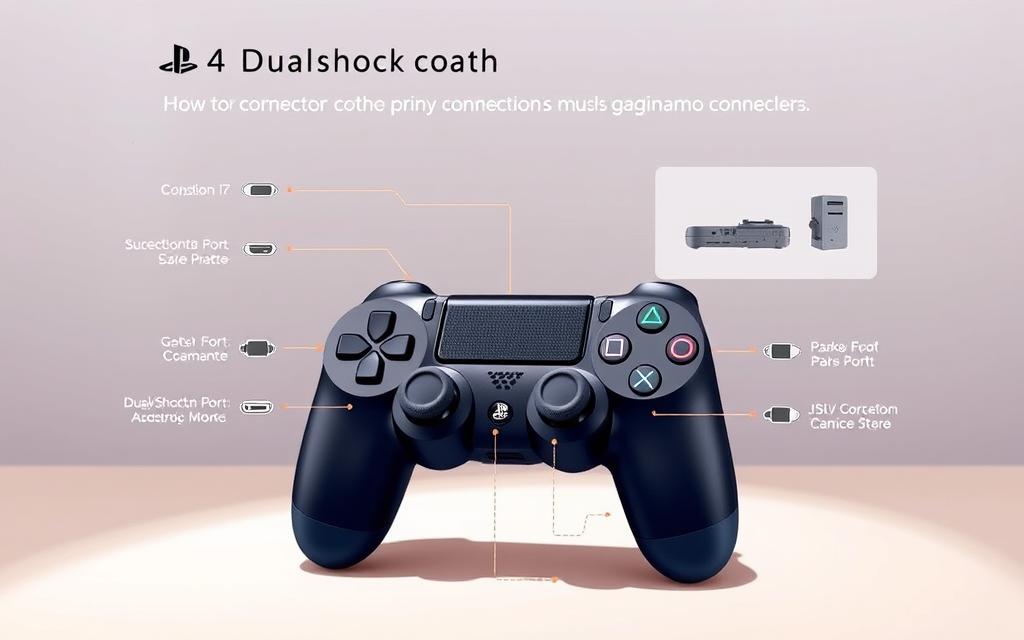
Step-by-Step Guide: How to connect the ps4 controller
Gaming on mobile devices has become increasingly popular, and using a controller like Sony’s DualShock4 can significantly enhance the experience. For those seeking optimal gaming comfort and efficiency, this guide provides a comprehensive overview of connecting your PS4 controller to various devices.
This article will walk you through the process of connecting your PS4 controller to different platforms, including Android devices and PCs, and provide troubleshooting tips for common connection issues. By understanding the capabilities and limitations of your controller, you can maximize its utility beyond just your PlayStation console.
Understanding Your PS4 Controller Capabilities
Before diving into the connection process, it’s crucial to familiarize yourself with the PS4 controller’s capabilities and features. The DualShock4 wireless controller is designed to offer a versatile gaming experience across various devices.
Key Features of the DualShock4 Controller
The DualShock4 controller boasts several innovative elements, including a touchpad, light bar, built-in speaker, and motion sensors, all of which enhance gameplay on PlayStation systems. Its ergonomic design and button layout are designed for comfort and intuitive control. The touchpad functionality varies depending on the device it’s connected to, offering different gaming experiences.
Connection Methods: Bluetooth vs. USB
Understanding the difference between Bluetooth and USB connection methods is crucial, as each offers different advantages in terms of convenience, latency, and feature availability. When connected via Bluetooth to non-Sony devices, certain features like the touchpad, rumble functionality, and headphone jack may have limited or no functionality. The light bar on the DualShock4 serves multiple purposes, including player identification and battery status indication, though its color customization may be limited on non-PlayStation devices.
Related:
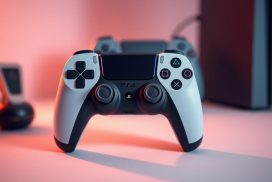


Knowing your controller’s capabilities across different connection types will help you choose the most appropriate method for your specific gaming needs, ensuring an optimal gaming experience whether you’re playing on a console, PC, or mobile device.
How to Connect the PS4 Controller to PlayStation Consoles
Connecting your PS4 controller to a PlayStation console is a straightforward process that enhances your gaming experience. The DualShock4 controller is designed to work seamlessly with both PS4 and PS5 consoles, albeit with some limitations on the latter.
Connecting to PS4 Console
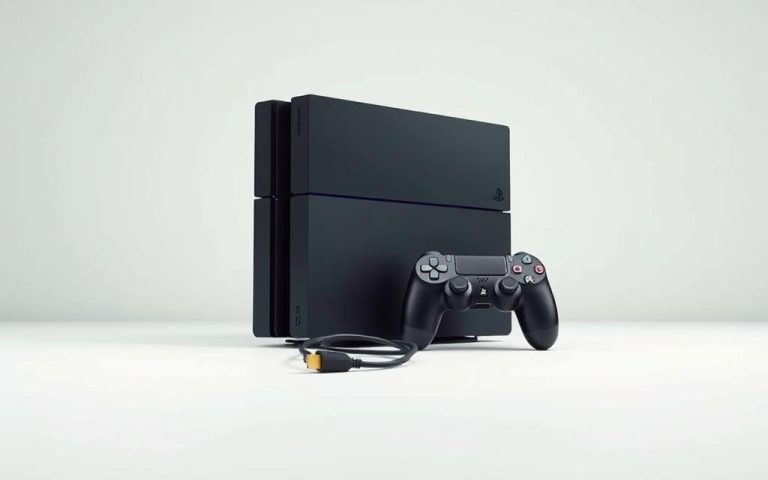
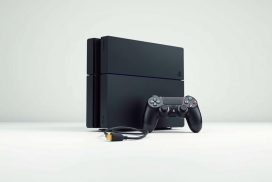
To connect your PS4 controller to a PS4 console, you have two options: a wired connection or a wireless one. The initial pairing process requires a USB to Micro-B cable.
Wired Connection Method
For a wired connection, simply plug the USB cable into both the controller and the console, and press the PlayStation button. This method is straightforward and provides a stable connection.
Wireless Connection Method
For a wireless connection, first pair the controller using a USB cable. Once paired, you can disconnect the cable and use the controller wirelessly with the same console.
Connecting to PS5 Console
Connecting your PS4 controller to a PS5 console is also possible, but there are significant limitations. The PS4 controller can only be used to play PS4 games on the PS5, not native PS5 games.
Compatibility Limitations with PS5 Games
The PS5 console is designed to take full advantage of the DualSense controller’s features, which are not available on the DualShock4. Thus, PS5 games are not compatible with the PS4 controller.
Using PS4 Controller for PS4 Games on PS5
However, you can use your PS4 controller to play PS4 games on the PS5. The process involves pairing the controller using a USB cable, similar to the initial setup with a PS4 console.
Connecting PS4 Controller to Mobile Devices
Connecting your PS4 controller to your mobile device is a straightforward process that opens up new gaming possibilities. With the ability to connect via Bluetooth, you can enjoy a more console-like gaming experience on your smartphone or tablet.
Pairing with Android Devices
To pair your PS4 controller with an Android device, ensure your device is running Android 10 or later. This compatibility requirement is crucial for a successful connection.
Compatibility Requirements
Android 10 or later is required for DUALSHOCK4 wireless controller Bluetooth connections. This means you can use your PS4 controller to control compatible games and applications via Bluetooth.
Step-by-Step Bluetooth Pairing Process
To pair your controller, go to your Android device’s Bluetooth settings and put it in scan mode. Then, simultaneously hold the PlayStation button and the Share button on your controller until the light bar flashes. Your device should detect the controller, and you can select it from the list of nearby Bluetooth devices to complete the pairing process.
Android Games Compatible with PS4 Controller
Many popular Android games support controller input, including those designed with console-like experiences in mind. While compatibility varies by title, many games offer enhanced gameplay with the PS4 controller.
Connecting to iPhone and iPad
iPhone and iPad users can also connect their PS4 controller via Bluetooth, provided their device is running iOS 13, iPadOS 13, or later.
iOS/iPadOS Compatibility Requirements
For iOS and iPadOS devices, the compatibility requirement is iOS 13, iPadOS 13, or later. This ensures that your device can support the DUALSHOCK4 wireless controller via Bluetooth.
Bluetooth Pairing Instructions
The pairing process for iOS devices is similar to that of Android devices. Put your controller in pairing mode by holding the PlayStation and Share buttons, then select the controller from your device’s Bluetooth settings.
Disconnecting Your Controller
To disconnect your controller, you can use the Control Center or Settings app on your iOS device. Properly disconnecting your controller helps preserve battery life and prevent unintended inputs.
| Device Type | Compatibility Requirement | Pairing Method |
|---|---|---|
| Android | Android 10 or later | Bluetooth |
| iOS/iPadOS | iOS 13, iPadOS 13 or later | Bluetooth |
Setting Up PS4 Controller on PC and Steam
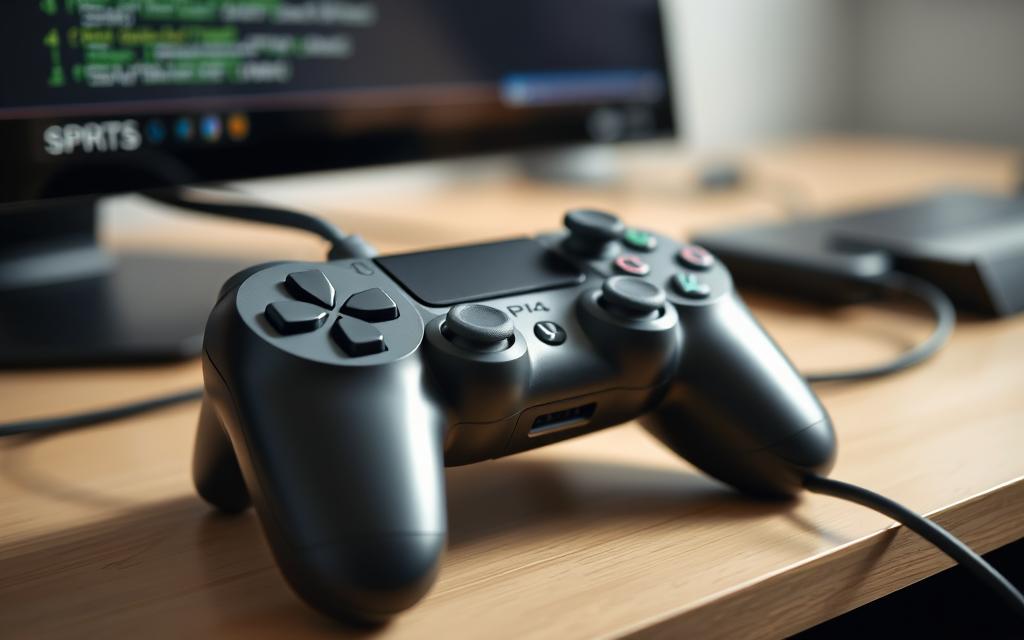
Discover how to connect your PS4 controller to PC and enhance your gaming experience. The DualShock4 is a versatile controller that can be used beyond the PlayStation ecosystem.
Using Steam’s Built-in Controller Support
Steam offers native support for the PS4 controller, making it easy to configure and use with any Steam game without additional software. To get started, ensure your wireless controller is paired or connected via a USB cable before opening Steam.
Configuring Controller Settings in Steam
To configure your controller settings in Steam, go to the Controller Settings menu, register your device, and enable PlayStation Configuration Support. This allows for full functionality and customization options.
Customizing Button Mapping
Steam also allows you to customize button mapping, adjust sensitivity, and create different profiles for various games. This enhances your gaming experience by tailoring the controller settings to specific games.
Using DS4Windows for Non-Steam Games
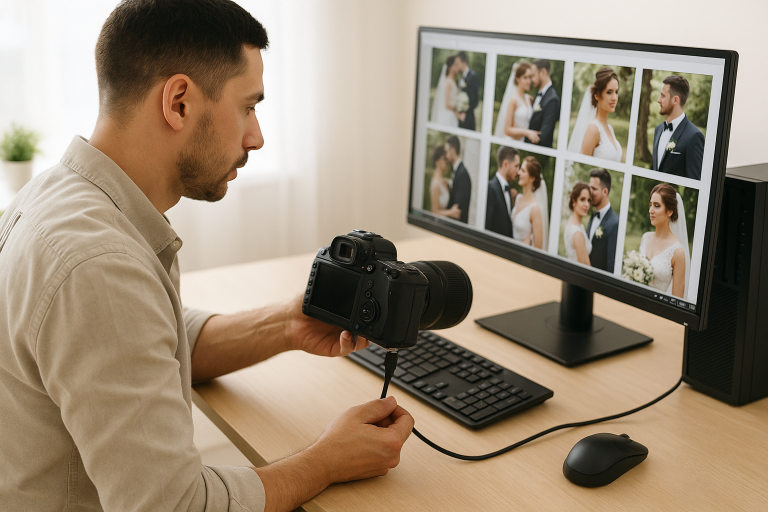
For games outside of Steam, DS4Windows is a valuable tool that emulates an Xbox controller, making your PS4 controller compatible with virtually any PC game.
Installing and Setting Up DS4Windows
Installing DS4Windows is straightforward; download the application, connect your controller via USB cable or wirelessly, and follow the setup wizard.
Configuring Controller Profiles
DS4Windows allows you to create and configure controller profiles for game-specific settings, including button remapping and trigger sensitivity adjustments.
Troubleshooting Common Connection Issues
Troubleshooting your PS4 controller’s connection issues can be straightforward if you follow the right steps. Even with straightforward connection processes, users sometimes encounter issues when trying to connect their PS4 controllers to various devices.
Controller Won’t Pair or Connect
When a controller won’t pair or connect, the most common culprits include low battery, interference from other Bluetooth devices, outdated system software, or hardware issues with the controller itself. Ensuring the controller is adequately charged is the first step, as indicated by the yellow light bar when charging.
How to Reset Your PS4 Controller
Resetting your PS4 controller is often the most effective solution for stubborn connection problems. To reset, locate the small reset button on the back of the controller near the L2 button, use a small tool like a paperclip to press the recessed button for 3-5 seconds, and then reconnect the controller to your device using a USB cable.
| Issue | Troubleshooting Step |
|---|---|
| Low Battery | Charge the controller until the light bar turns yellow. |
| Connection Issues | Reset the controller and reconnect via USB. |
| Interference | Move other Bluetooth devices away from the controller. |
Conclusion
Ultimately, the PS4 controller proves to be a highly adaptable accessory, suitable for gaming on various devices. The versatility of the PS4 controller extends far beyond the PlayStation console, offering enhanced gaming experiences across multiple platforms, including mobile devices and PCs.
Throughout this guide, we’ve covered comprehensive connection methods for various devices, from the straightforward process of connecting to a PS4 to the more complex setup required for PC gaming. By understanding the different connection methods—whether via USB cable for a direct connection or Bluetooth for wireless play—you can choose the most appropriate option for your specific gaming situation.
By following the steps outlined in this article and utilizing the troubleshooting tips when needed, you can enjoy your favorite games with the precision and comfort of your PS4 controller regardless of the platform. As operating systems and applications update, the fundamental principles covered in this guide will remain relevant for connecting your PS4 controller to various devices.
FAQ
What is the best way to connect my DualShock 4 controller to my PS4 console?
You can connect your DualShock 4 controller to your PS4 console using a micro-USB cable or via Bluetooth. To connect via Bluetooth, press and hold the PS button and the Share button simultaneously until the light bar starts flashing.
Can I use my PS4 controller on my PC?
Yes, you can use your PS4 controller on your PC. You can connect it using a USB cable or via Bluetooth. You may need to use software like DS4Windows to configure the controller for non-Steam games.
How do I pair my PS4 controller with my Android device?
To pair your PS4 controller with your Android device, put the controller in pairing mode by pressing and holding the PS button and the Share button simultaneously. Then, go to your Android device’s Bluetooth settings and select the controller from the list of available devices.
Why is my PS4 controller not connecting to my console?
If your PS4 controller is not connecting to your console, try resetting the controller by pressing the small reset button on the back. You can also try restarting your console or checking for any issues with the USB cable.
Can I use my PS4 controller on my iPhone or iPad?
Yes, you can use your PS4 controller on your iPhone or iPad. To connect, put the controller in pairing mode and go to your device’s Bluetooth settings. Select the controller from the list of available devices to complete the pairing process.
What should I do if my PS4 controller’s light bar is not working?
If your PS4 controller’s light bar is not working, try restarting the controller or checking for any issues with the controller’s hardware. You can also try resetting the controller or updating the console’s software.
Can I use my PS4 controller on Steam?
Yes, you can use your PS4 controller on Steam. Steam has built-in support for the DualShock 4 controller, so you can simply connect the controller to your PC and start playing games.