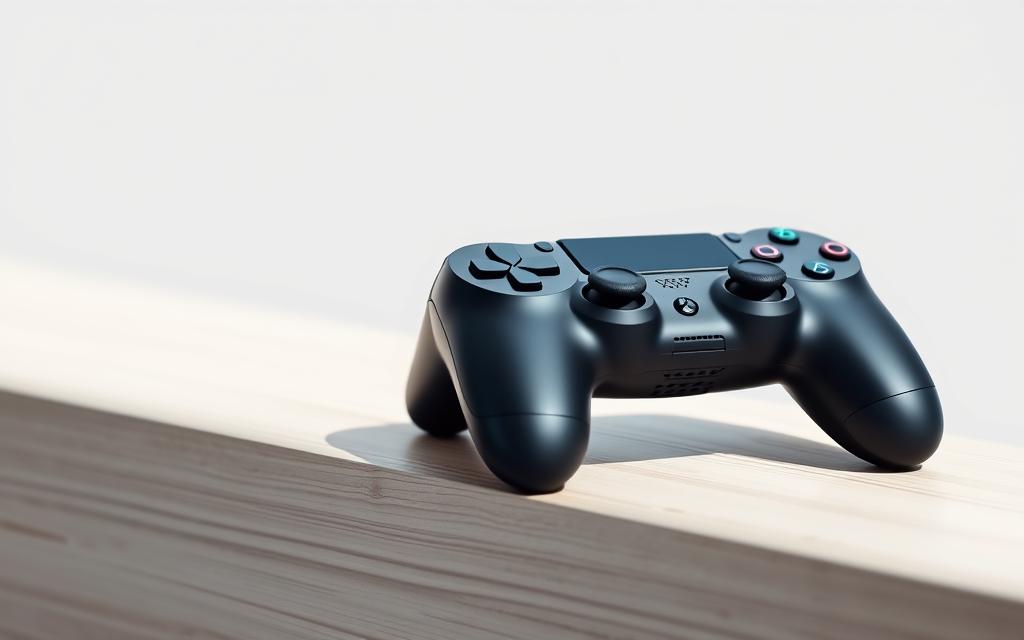
Step-by-Step Guide: How to connect a ps4 controller
For mobile gaming enthusiasts seeking an optimal gaming experience, using a controller like Sony’s excellent PS4 controller can significantly improve comfort and efficiency.
This comprehensive guide will walk you through various methods of connecting your controller to different devices, ensuring an enjoyable gaming experience across multiple platforms.
Understanding the versatility of your ps4 controller opens up new gaming possibilities beyond your PlayStation console, making this your one-stop resource for all connection needs.
Understanding Your PS4 Controller
Understanding the DualShock4 controller is essential for a seamless connection experience across different platforms. The controller’s design and features play a significant role in its connectivity options and overall user experience.
Key Components of the DualShock4 Controller
The DualShock4 controller features several key components that are essential to understand before attempting to connect it to any device. The light bar serves as a status indicator, while the PS button and Share button play crucial roles in the pairing process. As stated by Sony, “The DualShock 4 wireless controller is designed to provide an immersive gaming experience.”
Related:
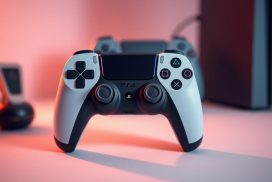
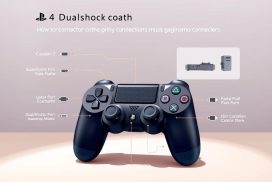

“The innovative technology in the DualShock4 controller enhances gameplay and connectivity.”
Preparing Your Controller for Connection
Before connecting your PS4 controller, ensure it’s adequately charged to prevent interruptions during the pairing process. Understanding the wireless capabilities of your controller will help determine the best connection method for your device. The DualShock4’s versatile design allows it to function with various platforms beyond just the PlayStation system.
Preparing your controller properly before attempting connection will significantly reduce troubleshooting needs and ensure a smoother setup experience. By familiarizing yourself with the controller’s components and capabilities, you can enjoy a more streamlined connection process.
How to Connect a PS4 Controller to PlayStation Consoles
The process of connecting a PS4 controller to a PlayStation console involves choosing between a wired USB connection and a wireless Bluetooth connection. Both methods have their advantages, offering flexibility and reliability.
Wired Connection Method
To connect your PS4 controller via a wired connection, simply use a USB cable to link the controller to your PlayStation console. This method provides a lag-free experience and charges your controller simultaneously. It’s the most straightforward way to ensure a stable connection.
Wireless Connection via Bluetooth
For a wireless connection, you’ll need to put your controller into pairing mode. First, ensure your controller is turned off. Then, simultaneously press the PS and SHARE buttons until the light bar flashes. This indicates that your controller is ready to be paired with your PlayStation console via Bluetooth.
| Connection Method | Advantages |
|---|---|
| Wired (USB) | Lag-free, Charges Controller |
| Wireless (Bluetooth) | Convenient, No Cable Clutter |
Connecting Your PS4 Controller to Mobile Devices
Take your gaming on the go by linking your PS4 controller to your smartphone or tablet. This connection allows for a more immersive gaming experience on mobile devices.
Pairing with Android Smartphones and Tablets
To connect your PS4 controller to an Android device, ensure your smartphone or tablet is running Android 10 or later. Navigate to your device’s Bluetooth settings and put your controller in pairing mode. Select “DUALSHOCK4 Wireless Controller” from the list of nearby devices to establish the connection.
| Android Version | Compatibility |
|---|---|
| Android 10 or later | Compatible |
| Earlier than Android 10 | Not Compatible |
Connecting to iPhones and iPads
For iPhone and iPad users, you’ll need iOS 13 or newer to connect your PS4 controller. Open the Settings app, navigate to Bluetooth, and put your controller in pairing mode. Select “DUALSHOCK4 Wireless Controller” to complete the connection.
“The ability to use a PS4 controller with mobile devices opens up new possibilities for gamers on the go.” – Gaming Enthusiast
Once connected, you can enjoy a wide range of games with your PS4 controller on your mobile device. Some games even offer specific controller settings for an optimized experience.
Using Your PS4 Controller with PC and Mac
Using a PS4 controller on your PC or Mac can significantly enhance your gaming experience. The controller offers a comfortable and immersive way to play games on your computer.
USB Connection Method
One of the simplest ways to connect your PS4 controller to a PC or Mac is via USB. By using a compatible micro-USB cable, you can establish a reliable connection. This method is supported across various operating systems, including Windows, Mac, and Linux.
Bluetooth Pairing
For a wireless gaming experience, you can pair your PS4 controller with your PC or Mac via Bluetooth. On Windows, navigate to “Settings” > “Devices” > “Bluetooth & other devices,” then click “Add Bluetooth or other device” and select “Bluetooth.” Choose “Wireless Controller” from the list of available devices to complete the pairing process.
Installing Necessary Drivers and Software
To ensure full functionality and compatibility with various games, you may need to install additional drivers or software. For Windows users, DS4Windows is a popular choice, as it allows the PS4 controller to be recognized as an Xbox 360 controller, enhancing compatibility with Windows 10 games.
| Operating System | Connection Method | Additional Software |
|---|---|---|
| Windows | USB, Bluetooth | DS4Windows |
| Mac | USB, Bluetooth | Native Support |
| Linux | USB, Bluetooth | Open-source drivers |
Troubleshooting Common Connection Issues
Encountering issues with your PS4 controller can be frustrating, but there are several steps you can take to resolve common problems. Connection issues can arise from various sources, including hardware and software factors.
Controller Not Pairing or Connecting
If your PS4 controller is not pairing or connecting, first make sure your controller and device are updated. Try resetting the Bluetooth connection by “forgetting” the device in your settings and then reconnecting it. Checking battery levels and ensuring compatible software versions are also essential first steps.
Light Bar Issues and What They Mean
The light bar on your PS4 controller communicates different status messages through colors and flashing patterns. Understanding these signals can help diagnose connection problems. For instance, a blinking light may indicate that the controller is in pairing mode.
Resolving Input Lag and Disconnection Problems
Input lag and sudden disconnections often stem from interference or competing Bluetooth devices. To resolve these issues, try adjusting your gaming environment or updating your controller’s firmware. Maintaining proper charging habits can also extend battery life and connection reliability.
| Issue | Possible Cause | Solution |
|---|---|---|
| Controller not pairing | Outdated software or low battery | Update software and charge controller |
| Light bar issues | Controller in pairing mode or low battery | Check light bar signals and charge controller |
| Input lag | Interference or outdated firmware | Adjust gaming environment and update firmware |
Conclusion
This article has demonstrated the ease of connecting your PS4 controller to various devices, opening up new gaming possibilities. By following this guide, you’ve learned how to expand your controller’s compatibility beyond the PlayStation console, enhancing your overall gaming experience. Whether you’re playing on devices or using remote play features, your PS4 controller can serve as your primary game input device. For further customization, consider exploring options like RetroPie configurations to maximize your controller’s potential across different platforms.
FAQ
What is the first step to pairing my PS4 controller?
To start pairing your PS4 controller, ensure it’s in pairing mode by holding down the Share button and the PS button simultaneously until the light bar starts flashing.
How do I know if my PS4 controller is connected via Bluetooth?
When your PS4 controller is successfully connected via Bluetooth, the light bar will stop flashing and remain steady, indicating a stable connection to your device.
Can I use my PS4 controller with devices other than the PS4 console?
Yes, your PS4 controller can be used with various devices, including Android smartphones, iPhones, iPads, Windows PCs, and Macs, using either a USB cable or Bluetooth.
Why is my PS4 controller not pairing with my device?
If your PS4 controller is not pairing, try resetting it by locating the small reset button on the back, near the L2 trigger, and pressing it with a pin. Then, attempt to pair it again.
What do the different light bar colors on my PS4 controller indicate?
The light bar on your PS4 controller indicates its status: a steady light means it’s connected, while flashing indicates it’s in pairing mode or there’s a connection issue.
How can I resolve input lag or disconnection issues with my PS4 controller?
To resolve input lag or disconnection issues, try moving closer to your device, ensuring there are no obstacles between the controller and the device, and checking for any interference from other wireless devices.
Do I need to install drivers or software to use my PS4 controller with my PC or Mac?
While some devices may automatically install necessary drivers, you might need to download and install additional software for full functionality, especially for gaming on PC or Mac.