Step-by-Step Guide: How do you connect a ps4 controller to the ps4
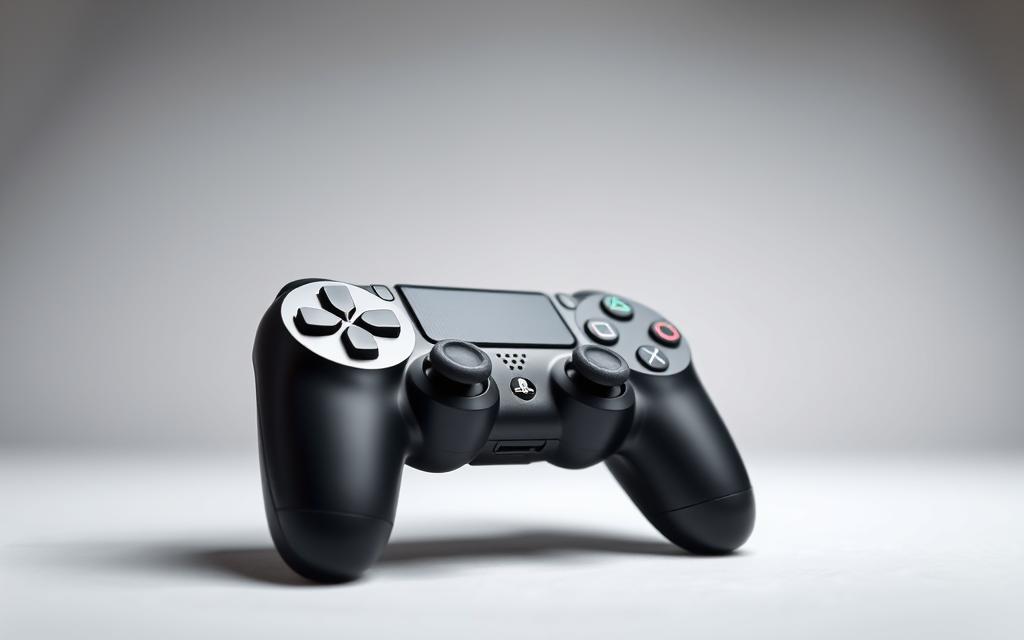
Setting up your PS4 controller is an essential step in enjoying your PlayStation 4 gaming experience. Whether you’re a new owner or need to reconnect an existing controller, this guide will walk you through the process.
Understanding how to pair your controller with your console is crucial, especially when you need to connect multiple controllers or replace a malfunctioning one. We’ll cover both wireless and wired connection methods to ensure you can get your controller working regardless of your situation or preferences.
This comprehensive guide will provide clear instructions for all scenarios, helping you get back to gaming quickly and efficiently on your PS4 console or device, with a seamless experience on your screen.
What You’ll Need Before Getting Started
Ensuring a seamless connection between your PS4 and its controller begins with having the right equipment at hand. To establish a successful connection, you’ll need to check a few essential aspects of your PS4 controller.
Essential Equipment for Controller Connection
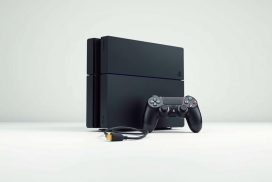
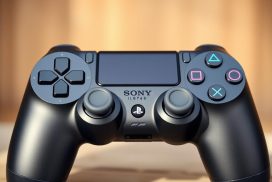
First and foremost, verify that you have a functional PS4 controller and a PS4 console. Additionally, ensure you have a USB cable compatible with your controller for initial pairing or for a wired connection.
Related:
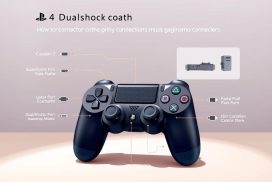

Checking Controller Battery Status
Before connecting, it’s crucial to check the battery status of your controller. Observe the light bar on top of the device. When the cable controller is charging but not turned on, the light will turn yellow, indicating it’s currently charging. If your controller won’t hold a charge or doesn’t show any charging indicator, it may need a battery replacement or repair. Controllers with very low battery levels may require a few minutes of charging before they can be paired successfully.
How Do You Connect a PS4 Controller to the PS4 – Wireless Method
Connecting your PS4 controller to the PS4 wirelessly is a straightforward process that enhances your gaming experience. This method allows you to play games from a distance, making it more enjoyable and immersive.
Step-by-Step Wireless Connection Process
To connect your PS4 controller wirelessly, start by ensuring that your PS4 is turned on. Then, press and hold the PS button and the Share button on your controller simultaneously until the light bar starts flashing. This indicates that the controller is in pairing mode.
On your PS4, navigate to Settings > Bluetooth and select the controller from the list of available devices. Once connected, the light bar on the controller will change to a solid color, indicating that it is paired successfully.
Understanding the Controller Light Bar Indicators
The light bar on your PS4 controller serves as a visual indicator of its connection status and player assignment. Here are some key points to understand:
- The light bar color indicates the player number: blue for Player 1, red for Player 2, green for Player 3, and pink for Player 4.
- A flashing light bar indicates that the controller is searching for a connection or in pairing mode.
- A solid light bar color signifies a successful connection.
Understanding these indicators can help you quickly diagnose connection issues without navigating through system menus on your screen.
| Light Bar Color | Player Assignment |
|---|---|
| Blue | Player 1 |
| Red | Player 2 |
| Green | Player 3 |
| Pink | Player 4 |
Connecting Your PS4 Controller via USB Cable
A USB connection offers a hassle-free way to connect your PS4 controller to the PS4 console. This method is particularly useful when you’re experiencing issues with wireless connectivity or prefer a more stable connection.
Benefits of Wired Connection
Using a USB cable to connect your controller provides several benefits, including reduced latency and interference. This is especially important in competitive gaming scenarios where every millisecond counts.
- A wired connection minimizes the risk of dropped signals and disconnections.
- It provides a more stable and consistent gaming experience.
Setting Up USB-Only Communication Mode
You can configure your PS4 to use the controller exclusively via USB when connected. To do this, navigate to the Settings menu, then select Devices, followed by Controllers. Within the Controllers settings, you’ll find an option to use USB communication when the controller is connected by cable.
- To access this setting, go to Settings > Devices > Controllers.
- Enabling this option ensures that your controller won’t attempt to use Bluetooth signals even when physically connected.
Troubleshooting Connection Problems
When your PS4 controller fails to connect, it can be frustrating, but there are several troubleshooting steps you can take.
Common Connection Issues and Solutions
Several common issues can cause your PS4 controller to fail to connect to your console. These include low battery, interference from other devices, and issues with the USB cable.
- Check the battery level of your controller and charge it if necessary.
- Ensure that your console is turned on and that the controller is properly paired.
- Try restarting your console and controller to resolve any connectivity issues.
How to Reset Your PS4 Controller
If you’re experiencing persistent issues with your PS4 controller, resetting it may be the solution.
Using the Reset Button
To reset your controller, locate the small reset button on the back, near the L2 trigger. Use a small pin or needle to press the button and hold it for a few seconds.
Re-Pairing After Reset
After resetting, you’ll need to re-pair your controller with your console. To do this, hold the Share and PS buttons simultaneously for about 3 seconds until the light bar flashes. Then, connect the controller to your console using a USB cable.
Once paired, your controller should function normally and appear on your home screen as connected. If pairing fails after reset, try using a different USB cable or port at the end of your console.
Conclusion
Ultimately, pairing your PS4 controller with your console can be accomplished in a few easy steps. Whether you prefer the convenience of wireless connectivity or the reliability of a wired connection via the port, your PlayStation system offers flexible options to suit your gaming preferences. Regular maintenance, including proper charging and occasional resets, will ensure your devices perform optimally over time. For more information on troubleshooting common issues like charging problems, visit this helpful resource. By following this guide, you should be able to connect your PS4 controller to your PS4 with ease.
FAQ
What is the easiest way to connect my PS4 controller to the console?
The easiest way is to use a USB cable to establish a wired connection. Simply plug the USB cable into the PS4 controller and the other end into the PS4 console.
Can I connect my PS4 controller to the PS4 via Bluetooth?
Yes, you can connect your PS4 controller to the PS4 via Bluetooth. To do this, press and hold the PS button and the Share button simultaneously for five seconds until the light bar starts flashing.
What do the different light bar colors on my PS4 controller indicate?
The light bar on your PS4 controller indicates the player number assigned to the controller. The color of the light bar corresponds to the player number: blue for Player 1, red for Player 2, green for Player 3, and purple for Player 4.
Why is my PS4 controller not connecting to the console?
If your PS4 controller is not connecting, try resetting it by pressing the small reset button on the back of the controller with a paper clip. Then, try reconnecting it to the PS4 console.
Can I use my PS4 controller with multiple PS4 consoles?
Yes, you can use your PS4 controller with multiple PS4 consoles. However, you’ll need to pair it with each console separately using the USB cable or Bluetooth method.
How do I know if my PS4 controller is charging?
When your PS4 controller is charging, the light bar will turn orange. Once it’s fully charged, the light bar will turn off.