The PS4 has become a reliable gaming console, but pairing its controller can sometimes be a challenge. Having a wireless controller is convenient, but you need to sync it with your console to use it.
To get started, you’ll need to understand the basic components of your DualShock4 controller. Our comprehensive guide will walk you through the process of pairing your controller with your PS4 console and other devices. For more detailed information, you can refer to this resource on syncing your PS4 controller.
Whether you’re setting up a new controller or reconnecting an existing one, our guide provides the necessary steps to get your controller working properly. You can enjoy your favorite games without technical frustrations by following our detailed instructions.
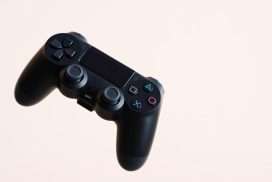
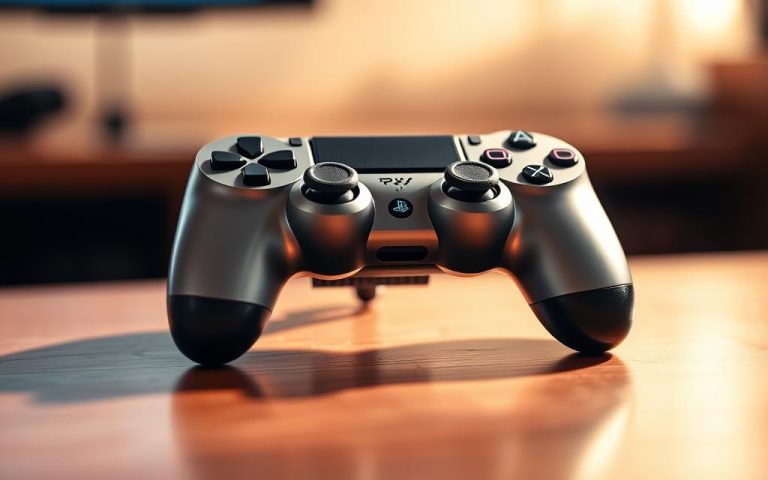
To get the most out of your gaming experience, it’s essential to understand the components and functionality of your PS4 controller. The DualShock4 controller is a sophisticated device designed to enhance your gaming sessions.
Key Components of the DualShock4 Controller
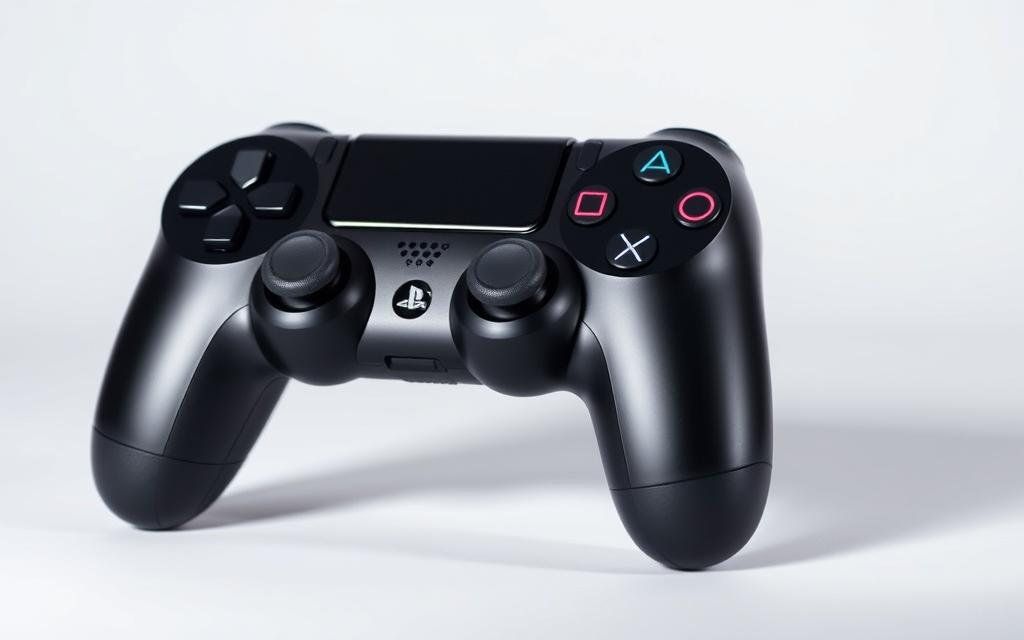
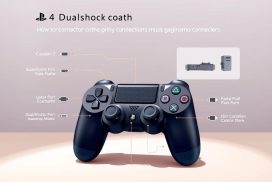
The DualShock4 controller features several important components, including the PlayStation button, Share button, Options button, directional pad, analog sticks, and the distinctive light bar that serves as a visual indicator. The light bar on top of the controller serves multiple functions: it indicates which player number you are, shows charging status, and provides visual feedback in compatible games.
Understanding the battery life of your controller is crucial for uninterrupted gaming sessions. A fully charged DualShock4 typically provides 4-8 hours of gameplay, depending on usage patterns and features like vibration and speaker volume.
To check the controller battery level, press hold button the PS button to display the Quick Menu. The battery icon will blink while the controller is charging. It takes about 2 hours to charge the controller when the battery has no remaining charge.
Feature
Description
Benefit
Light Bar
Visual indicator showing player number and charging status
Enhances gaming experience with visual feedback
Battery Life
4-8 hours of gameplay depending on usage
Allows for extended gaming sessions
Charging Time
Approximately 2 hours for a full charge
Quickly gets you back to gaming
How to Pair a PS4 Controller with Your PlayStation 4 Console
Pairing your PS4 controller with your PlayStation4 console is a straightforward process that requires minimal equipment. To establish a connection, you’ll need a DualShock4 wireless controller and a USB to Micro-B cable.
Required Equipment for Pairing
To pair your PS4 controller, you’ll need a USB to Micro-B cable, which is the same type used for charging the controller. This cable is essential for establishing the initial connection between the controller and the console.
Step-by-Step Pairing Process
To pair your controller, connect one end of the USB cable to the controller and the other end to a USB port on your PS4 console. Then, press the PlayStation button to turn on the controller and establish the connection. The light bar on the controller will illuminate to indicate successful pairing.
Understanding the Light Bar Indicators
The light bar on your PS4 controller indicates the player number assigned to the controller. The colors correspond to different player numbers: blue for the first player, red for the second, green for the third, and pink for the fourth.
Player Number
Light Bar Color
1
Blue
2
Red
3
Green
4
Pink
Connecting Your PS4 Controller to Other Devices
The PS4 controller’s versatility allows it to be connected to various devices beyond the PlayStation console, including Windows PCs, Mac computers, Android phones, and tablets.
Pairing with a PC via Bluetooth
To connect your PS4 controller to a PC, you’ll need to use Bluetooth. First, press and hold the Share and PlayStation buttons simultaneously until the light bar blinks rapidly, indicating that the controller is in pairing mode. Then, navigate to your PC’s Bluetooth settings, search for “Wireless Controller,” and select it to complete the pairing process.
Connecting to Mobile Devices
When connecting to mobile devices like smartphones or tablets, you may need to download specific apps or games that support controller input. To pair, put the controller in pairing mode and navigate to your device’s Bluetooth settings to find and select “Wireless Controller.”
Feature Limitations When Using with Non-PS4 Devices
While the PS4 controller can be used with various devices, some features may not be supported when connected via Bluetooth. For example, the touchpad, light bar color customization, rumble feedback, motion controls, and headphone jack audio may not work depending on the device and software being used.
Device Type
Supported Features
Limitations
Windows PC
Basic controller functions
Touchpad, rumble, motion controls
Android Devices
Basic controller functions, some games
Touchpad, light bar customization
Sony Xperia Devices
All functions available
None
Troubleshooting Common Pairing Issues
Troubleshooting common pairing issues with your PS4 controller can be straightforward if you follow the right steps. When you’re having trouble with a controller not working wirelessly with your PS4, the usual issue is that the controller’s battery is undercharged. Ensure the controller is charging when you plug it in; when it’s not in use, the light bar on top will turn yellow if it’s charging.
If your pairing issues persist, try resetting your PlayStation controller and PS4. Navigate to Settings > Devices > Bluetooth Devices, select the controller, and choose “Forget Device.” If re-pairing doesn’t work, you may need to reset the controller using a paperclip to press the hidden button on the back.
Alternatively, you can use a wired connection by going to Settings > Devices > Controllers and enabling “Communicate Via USB Cable.” This bypasses Bluetooth connectivity issues but requires keeping the controller connected during gameplay.
By following these steps, you should be able to resolve common pairing issues with your PS4 controller and enjoy uninterrupted gaming.
FAQ
What is the first step in pairing my PS4 DualShock 4 controller?
To start pairing, ensure your PS4 console is turned on. Then, connect your DualShock 4 controller to the console using a USB cable. This establishes a wired connection, making it easier to pair the devices.
How do I know if my PS4 controller is successfully paired?
Once paired, the light bar on your DualShock 4 controller will be steady, indicating it’s connected. The player indicator lights will also show which player number you’ve been assigned.
Can I pair my PS4 controller with devices other than my PS4 console?
Yes, you can pair your DualShock 4 controller with Bluetooth devices like PCs and mobile devices. However, some features may not work as they do on the PS4 console.
Why is my PS4 controller not connecting via Bluetooth?
Ensure your controller is in pairing mode by pressing and holding the PS button and the Share button simultaneously until the light bar blinks. Then, search for available Bluetooth devices on your PC or mobile device to complete the pairing process.
How do I charge my PS4 controller?
You can charge your DualShock 4 controller by connecting it to your PS4 console using a USB cable. The console must be turned on or in rest mode to charge the controller.
What should I do if my PS4 controller is not working properly?
Try resetting your controller by locating the small reset button on the back, near the L2 shoulder button. Use a small pin or needle to press the button. Then, try pairing it again with your console or device.
Can I use my PS4 controller for gaming on my PC?
Yes, you can use your DualShock 4 controller to play games on your PC via Bluetooth or a wired connection. Some games may require additional software or configuration for optimal performance.
The gaming world is constantly evolving, with new console generations emerging regularly. A common question among gamers is whether it’s possible to play older games on newer systems, specifically, if PS3 games are compatible with the PS4. The straightforward answer is that the PS4 is not directly backward-compatible with PS3 games. Inserting a PS3 disc…
Phasmophobia has taken the gaming world by storm with its unique horror game experience, captivating players and streamers alike since its early access release in 2020 on Steam. The game involves teams of up to four players investigating haunted locations to gather evidence and determine the type of ghost causing paranormal activity. With its success…
For mobile gaming enthusiasts, using a controller like Sony’s DualShock 4 can significantly enhance the gaming experience. It provides comfort and efficiency, making it ideal for those seeking an optimal gaming experience. This comprehensive guide will walk you through the process of connecting your PS4 controller to your mobile device. We will cover both Bluetooth…
Digital devices have become a huge part of daily life, especially in recent years with the growth of remote working, online learning, and even streaming services for films and series. People are glued to their screens now more than ever, and screen time has increased for all ages, whether for work and school or…
How do you feel about having numerous files and photos that take up ample space on your phone or personal laptop? Well, in today’s age, managing such content can quickly become overwhelming. With the prevalence of high-resolution cameras and the increasing need for easy access to documents, finding an adequate and reliable storage solution has…
This is the digital age, where a lot of transactions are done online like shopping on eCommerce websites, banking, and sharing personal information. Every day, cybercriminals invent new tricks to trick unsuspecting users, and among their favorite tools are fraudulent websites. A scam website is a site that pretends to be something it’s not, or…