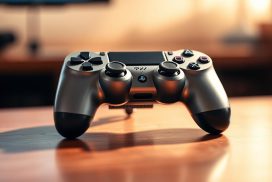
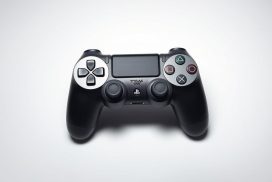
Gaming on PC with a PS4 controller offers a more immersive and comfortable gaming experience. While the keyboard-mouse combo is reliable, many players prefer the familiarity of their PS4 controller. This guide will walk you through the process of connecting your PS4 controller to your PC.
You can connect your PS4 controller via USB or Bluetooth, and we’ll cover both methods. For a seamless experience, we’ll also discuss compatibility considerations and how to optimize your controller settings on Steam. By following these steps, you’ll be able to enjoy your PC gaming with the comfort and precision of your PS4 controller. Check out our detailed guide on how to connect your PS4 controller to for a comprehensive overview.
Understanding PS4 Controller Compatibility with PC
PC gamers often prefer using a PS4 controller due to its ergonomic design and familiar layout. The PS4 controller can be connected to Windows, Linux, or Mac PC, offering flexibility for gamers across different platforms.
Benefits of Using a PS4 Controller for PC Gaming
The PS4 controller offers several benefits for PC gaming, including an ergonomic design and familiar button layout that many gamers prefer over keyboard and mouse for certain game genres. The DualShock4 controller provides features like motion controls, touchpad functionality, and comfortable analog sticks, enhancing the PC gaming experience.
Before pairing your PS4 controller with your PC, ensure you have either a compatible micro-USB cable or a PC with Bluetooth capability. For optimal functionality on Windows, you may need DS4Windows software, which allows your PS4 controller to appear as an Xbox360 controller, making it compatible with various games and system configurations.
How to Pair a PS4 Controller to PC via USB
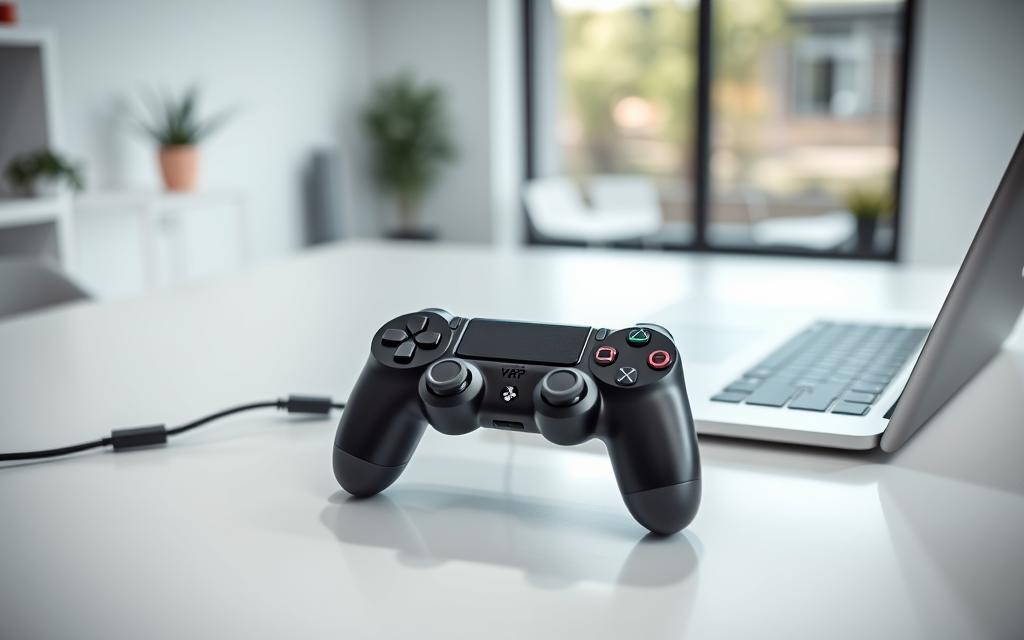
Pairing your PS4 controller to your PC via USB is a straightforward process that requires minimal setup. To start, you’ll need a compatible micro-USB cable to connect your PS4 controller to the USB port on your PC.
Connecting with a Micro-USB Cable
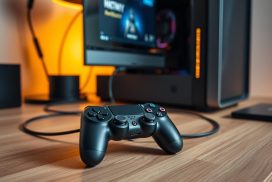
To connect your PS4 controller, simply plug one end of the micro-USB cable into the controller and the other end into a free USB port on your PC. For a DualSense controller, use a USB Type-C cable. Ensure your PC’s USB port is compatible with the cable. The controller should be automatically detected by your PC, and basic drivers will be installed.
Verifying the Connection and Testing Your Controller
After connecting, verify that your PS4 controller is properly recognized by checking the Windows Device Manager or testing button inputs in the Windows game controller settings panel. You can test the controller by opening a compatible game or a controller test application. The wired USB connection offers several advantages, including zero input lag and no battery concerns.
By following these steps, you can easily connect your PS4 controller to your PC via USB and enjoy gaming without the hassle of wireless connectivity issues.
Connecting Your PS4 Controller via Bluetooth
Bluetooth connectivity allows you to use your PS4 controller wirelessly with your PC, enhancing your gaming experience. This method provides the freedom to game from a distance or in comfortable positions without being tethered by cables.
Putting Your Controller in Pairing Mode
To initiate pairing mode on your PS4 controller, you need to simultaneously press and hold the Share button and the PS button until the light bar begins flashing rapidly. This distinctive double-blink pattern indicates that your controller is ready to be paired.
Connecting to Windows Bluetooth Settings
To connect your controller to your PC, navigate to the Windows “Settings” menu, then to “Devices,” and finally to “Bluetooth & other devices.” Click on “Add Bluetooth or other device” and select “Bluetooth.” Your controller will appear as “Wireless Controller” in the list of available Bluetooth devices. Select it to complete the pairing process, entering “0000” as the PIN if prompted.
Troubleshooting Bluetooth Connection Issues
Common issues with Bluetooth connections include interference from other wireless devices, controller battery depletion, or outdated Bluetooth drivers on your PC. If you experience frequent disconnections, try reducing the distance between your controller and PC, removing potential sources of interference, or updating your PC’s Bluetooth drivers. For persistent issues, consider resetting your controller.
Optimizing Your PS4 Controller Experience on PC
Once you’ve paired your PS4 controller with your PC, it’s time to fine-tune its performance for the best gaming experience. Optimizing your controller involves a few key steps to ensure compatibility and enhance your gaming sessions.
Using DS4Windows for Enhanced Compatibility
DS4Windows is a powerful tool that makes your PS4 controller appear as an Xbox 360 controller to your PC, enhancing compatibility with Windows 10. To use DS4Windows, download it from the official site, extract the files, and run DS4Windows.exe. Follow the prompts to install the necessary drivers. With DS4Windows, you can enjoy advanced customization options such as button remapping, trigger sensitivity adjustment, and custom light bar colors.
Setting Up Your Controller with Steam
For Steam users, configuring your PS4 controller is straightforward. After pairing your controller, launch Steam and navigate to “Settings” > “Controller” > “General Controller Settings.” Check the “PlayStation Configuration Support” box to enable support. This allows you to create and save different control profiles for individual games, enhancing your gaming experience.
Keeping Your Controller Firmware Updated
Regularly updating your controller’s firmware is crucial for optimal performance and compatibility. Sony releases periodic updates that fix bugs and improve functionality. For DualSense controllers, use the PlayStation Accessories application for Windows to update firmware and access additional settings.
By following these steps, you can optimize your PS4 controller for PC gaming, ensuring a more enjoyable and immersive experience.
Conclusion
By linking your PS4 controller to your PC, you open up new possibilities for gaming comfort and precision. You can choose between a wired USB connection or wireless Bluetooth based on your preference. Software solutions like DS4Windows enhance your controller’s functionality. Keeping your controller firmware updated ensures the best experience. With your PS4 controller paired, you can enjoy the best of both console and PC gaming worlds.
FAQ
What are the benefits of using a PS4 controller for PC gaming?
Using a PS4 controller for PC gaming provides a more comfortable and familiar gaming experience, allowing you to enjoy your favorite games with the controller you’re used to. Many PC games also support the PS4 controller natively, making it a convenient option.
Do I need to install any software to use my PS4 controller on PC?
While Windows 10 can recognize a PS4 controller connected via USB, you may need to install DS4Windows for enhanced compatibility and to use your controller wirelessly via Bluetooth. DS4Windows is a software that allows you to customize your controller settings and ensures that your PS4 controller works seamlessly with PC games.
Can I connect my PS4 controller to PC wirelessly?
Yes, you can connect your PS4 controller to PC wirelessly using Bluetooth. To do this, you’ll need to put your controller in pairing mode and connect it to your PC’s Bluetooth settings. Make sure your PC has Bluetooth capabilities or use a Bluetooth adapter if it doesn’t.
Why is my PS4 controller not connecting to my PC via Bluetooth?
If your PS4 controller is not connecting to your PC via Bluetooth, ensure that your controller is in pairing mode and that your PC’s Bluetooth is enabled. You can also try restarting your controller and PC, or reinstalling the Bluetooth drivers on your PC. Additionally, check that your PC’s Bluetooth is compatible with the PS4 controller.
How do I update my PS4 controller firmware on PC?
To update your PS4 controller firmware on PC, you’ll need to connect it to your PC via USB and use the DS4Windows software. DS4Windows will notify you if there’s an update available and guide you through the update process. Keeping your controller firmware updated ensures that you have the latest features and compatibility with PC games.
Can I use my PS4 controller with Steam on PC?
Yes, you can use your PS4 controller with Steam on PC. To do this, you’ll need to configure your controller settings within Steam. You can customize button mappings, adjust sensitivity, and more to optimize your gaming experience. Make sure your PS4 controller is connected to your PC via USB or Bluetooth before configuring it in Steam.
The latest console from Sony, the PlayStation 5, has brought with it a host of exciting features, not least of which is its ability to play PS4 games. This backward compatibility is a significant advantage for gamers, allowing them to continue enjoying their existing library on the new hardware. Through software emulation, the PS5 can…
The transition from PlayStation 3 to PlayStation 4 was a significant technological leap, leaving many gamers wondering if they could still play their favorite PS3 titles on the newer console. Unlike the backward compatibility between PS4 and PS5, which allows almost all PS4 games to run on the new generation, the situation is more complex…
To create a video that looks professional, an ordinary person has to spend several hours editing, using complicated tools, and applying their technical skills. But now, that limitation is going away due to the popularity of AI-powered creativity. AI is changing the entire process of storytelling, starting from the scripts to the visuals. One of…
The lottery industry has existed for centuries yet is currently experiencing a major transformation brought on by technology. From digital tickets to online platforms, this advancement is making participation in lottery draws simpler and more exciting for people. Let’s examine how it’s impacting this age-old game. Online lottery platforms and their benefits Online lottery platforms…
In the fast-paced digital world, content creation can be both time-consuming and challenging. For writers, marketers, and business professionals looking to enhance productivity and efficiency, AI writing assistants offer a revolutionary solution. HIX Writer stands out as an advanced AI writing generator that catifies the need for swift, high-quality content creation. This how-to guide aims…
Gaming sessions can turn frustrating when your Xbox controller starts acting up. Stick drift is a common problem affecting players across Xbox One, Series X/S, and PC platforms. This issue causes unwanted movements, ruining precision in fast-paced games like Forza Motorsport. Many gamers face this hardware challenge, but replacing your device isn’t the only solution….