Step-by-Step Guide: How to sync ps4 controller
The PS4 has remained a reliable gaming console, even after the release of its successor. Many gamers continue to enjoy their PS4, especially with the convenience of wireless PS4 controllers. However, to use these controllers, you must sync them to your system. This guide will walk you through the process, ensuring a seamless gaming experience.
Syncing your controller is essential for optimal performance and to prevent connectivity issues during gameplay. Whether you’re setting up a new controller or reconnecting an existing one, this comprehensive guide provides the necessary steps to resolve any syncing issues quickly.
Understanding Your PS4 Controller
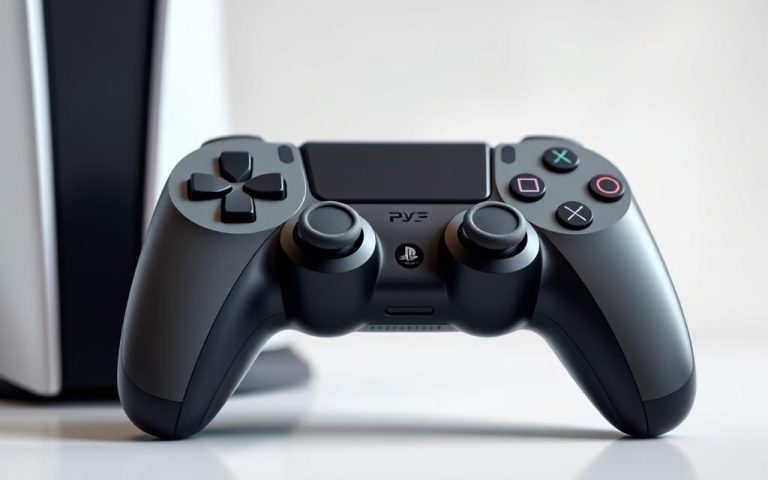
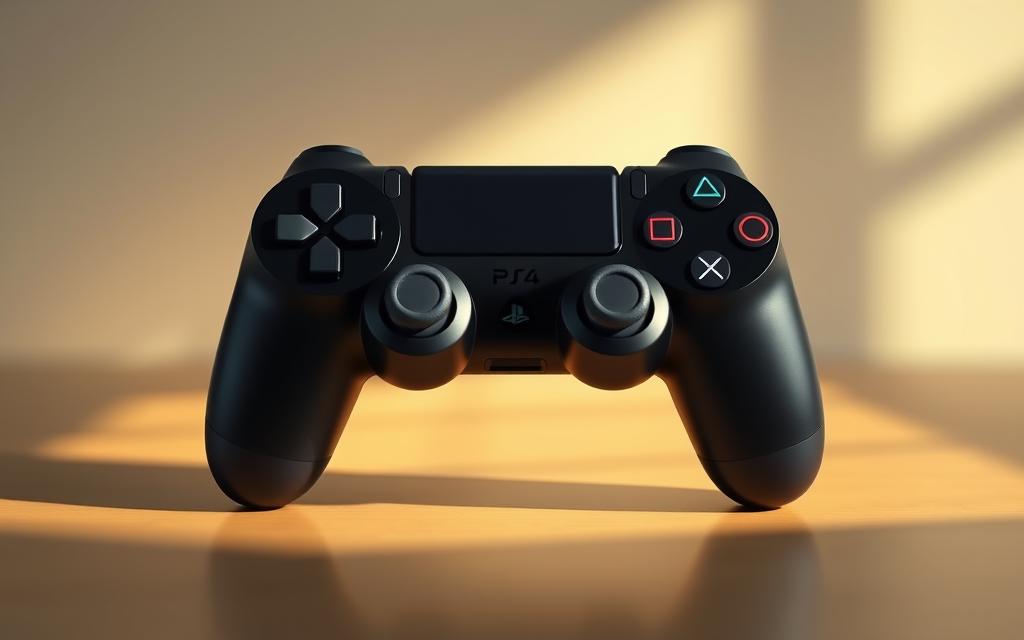
To get the most out of your PS4 gaming experience, it’s essential to understand the components and functionality of your DualShock4 controller. The PS4 controller is more than just a device for interacting with your console; it’s a sophisticated tool designed to enhance your gaming experience.
Key Components of the DualShock4 Controller
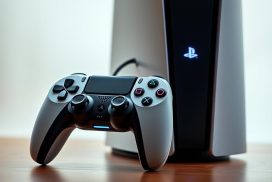
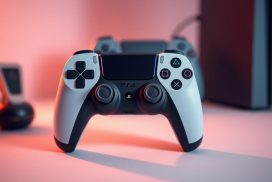
The DualShock4 controller features several key components, including the light bar, which serves as a status indicator showing different colors based on player number and connection status. Other critical elements include the PlayStation button, Share button, and Options button, all of which play crucial roles in the controller’s operation. The controller also boasts a built-in battery and advanced Bluetooth capabilities, enabling wireless connectivity to various devices beyond just the PS4 console.
Why Proper Syncing Matters
Proper syncing of your controller ensures optimal response time, prevents input lag, and maintains a stable connection during gameplay sessions. Incorrect syncing procedures can lead to issues such as disconnections, unresponsive buttons, or improper controller recognition. For more information on troubleshooting common issues, you can visit this helpful resource.
Related:


| Controller Feature | Description | Importance |
|---|---|---|
| Light Bar | Status indicator showing player number and connection status | High |
| PlayStation Button | Activates the controller and accesses various PS4 functions | High |
| Bluetooth Capability | Enables wireless connectivity to PS4 and other devices | Medium |
| Battery Life | Affects the duration of gaming sessions without interruption | Medium |
How to Sync PS4 Controller to PlayStation 4 Console
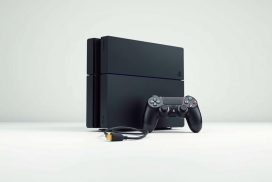
Syncing your PS4 controller to your PlayStation4 console is a straightforward process that requires minimal hardware. To establish a connection, you will need a USB to Micro-B cable, which is usually provided with your DualShock4 controller.
Using a USB Cable for First-Time Connection
To sync your controller for the first time, plug the USB cable into the controller and then into the USB port on your PS4. Turn on your console, and your controller should automatically connect. You’ll need to press the PlayStation button to activate it, taking you to the login screen to choose a player profile.
Reconnecting Wireless Controllers
After the initial syncing process, you can disconnect the USB cable and use your controller wirelessly. To reconnect, simply press the PS button on your controller. If you’ve previously paired your controller with your PS4, it should connect automatically. For multiple controllers, your PS4 assigns different light bar colors to each device, making it easy to identify which controller is connected to which player profile.
For a stable connection, ensure your controller is fully charged. If you encounter any issues during the syncing process, troubleshooting tips are available to resolve common problems.
Connecting PS4 Controller to PC and Other Devices
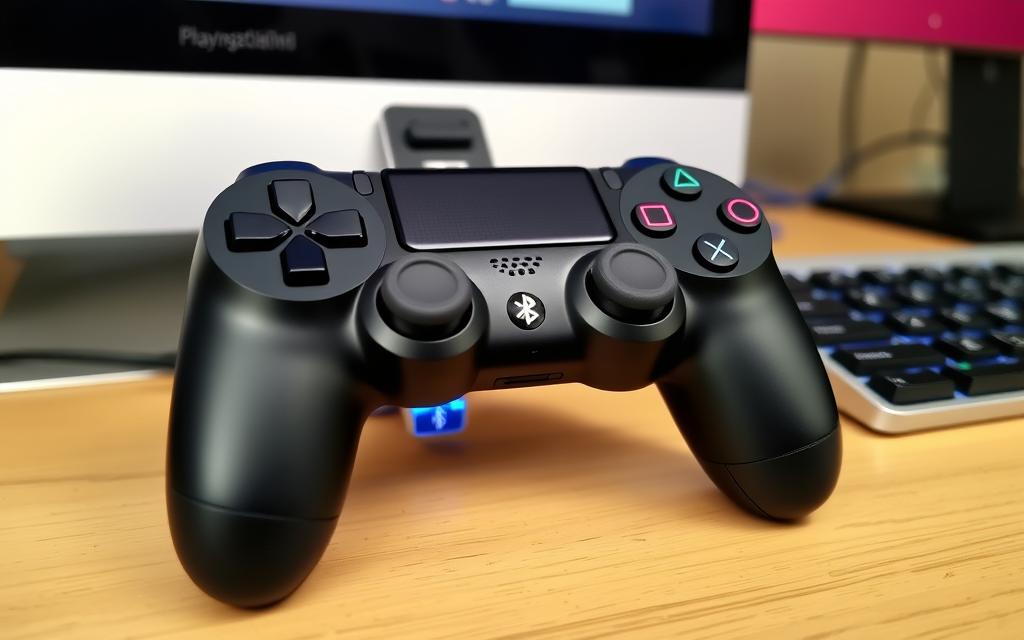
One of the key benefits of the PS4 controller is its ability to connect to a range of devices, enhancing your gaming flexibility. The DualShock 4 controller can be paired with PCs, Macs, smartphones, and tablets, allowing you to play your favorite games across different platforms.
Bluetooth Pairing Process
To connect your PS4 controller via Bluetooth, start by putting it into pairing mode. Press and hold the Share and PS buttons simultaneously until the status light blinks blue. Then, navigate to your device’s Bluetooth settings and look for “Wireless Controller.” Select it to complete the pairing process.
USB Connection Method
For a more stable connection, you can use a USB cable to connect your PS4 controller directly to your device. This method is straightforward and eliminates potential Bluetooth interference issues. Simply plug in the controller, and it should be recognized by your device.
Using Your Controller with Steam Games
Steam offers native support for PS4 controllers. To configure your controller on Steam, go to “Settings” > “Controller” > “General Controller Settings,” and check the “PlayStation Configuration Support” box. This allows you to customize button mapping and other settings for an optimized gaming experience.
Troubleshooting Common Syncing Issues
Resolving PS4 controller syncing issues involves a few straightforward steps that can get you back to gaming quickly. When you’re having trouble with a controller not working wirelessly with your PS4, the usual issue is that the controller’s battery is undercharged. Make sure the controller is charging when you plug it in — when it’s not in use, you’ll see the light bar on the top turn yellow.
Resetting Your Controller
If re-pairing the controller doesn’t work, the issue might be with the controller itself. In that case, you’ll need to reset it. To do this, turn off your PS4 and unplug both it and your internet router or modem. Then, use an unfolded paper clip to push the hidden button on the back of the controller for three to five seconds.
Fixing Connection Problems
Common connection problems include controllers that won’t pair, frequent disconnections, input lag, and unresponsive buttons. To diagnose these issues, try testing the controller with different connection scenarios to identify whether the problem lies with the controller or the PS4. For persistent wireless connection problems, consider enabling USB-only mode, which forces the controller to communicate exclusively through the cable connection.
| Issue | Troubleshooting Step |
|---|---|
| Controller not charging | Check the cable and controller port for damage |
| Controller not pairing | Reset the controller and try re-pairing |
| Frequent disconnections | Enable USB-only mode or check for interference from other devices |
Using USB-Only Mode
To enable USB-only mode, go to your PS4’s settings menu, then select “Devices” and “Controllers.” From there, you can configure your controller to use a wired connection. For more detailed instructions on troubleshooting PS4 issues, you can visit this helpful resource.
Conclusion
A properly synced PS4 controller is essential for an optimal gaming experience across various devices. By following this guide, you can easily connect your controller to your PS4 console, PC, or other compatible systems using either a USB cable or Bluetooth pairing. This versatility opens up a world of gaming possibilities, allowing you to play a wide range of games beyond the PlayStation ecosystem.
Understanding how to troubleshoot common syncing issues ensures that you can quickly resolve any connection problems, maintaining a stable and responsive gaming experience. Whether you’re into action games, sports titles, or strategy games, a properly synced ps4 controller provides the precision and comfort needed. With these skills, you’re well-equipped to enjoy wireless gaming with optimal options for your setup.
FAQ
What is the easiest way to connect my DualShock 4 controller to my PS4 console?
The simplest method is to use a USB cable for the initial connection. Plug the cable into both the controller and the PS4, and the console will automatically detect the controller.
Can I use my PS4 controller wirelessly?
Yes, after the initial connection via USB, you can use your PS4 controller wirelessly. Press the PS button, and the controller will connect to the console.
How do I connect my PS4 controller to my PC?
You can connect your PS4 controller to a PC using Bluetooth or a USB cable. For Bluetooth, put the controller in pairing mode by pressing and holding the PS and Share buttons until the light bar blinks. Then, search for the controller on your PC’s Bluetooth settings.
Why is my PS4 controller not connecting to my PS4 console?
If your controller is not connecting, try a hard reset by pressing the small reset button on the back of the controller with a paper clip. You can also try restarting your PS4 console or checking for any issues with the USB cable.
Can I use my PS4 controller with Steam games on my PC?
Yes, you can use your PS4 controller with Steam games. Connect the controller to your PC via USB or Bluetooth, and Steam should recognize it. You may need to configure the controller settings within Steam.
What should I do if my PS4 controller’s light bar is not turning on?
If the light bar is not turning on, try charging the controller or resetting it. If the issue persists, you may need to check for any hardware problems or contact Sony support.