Step-by-Step Guide: How to connect ps4 controller to phone
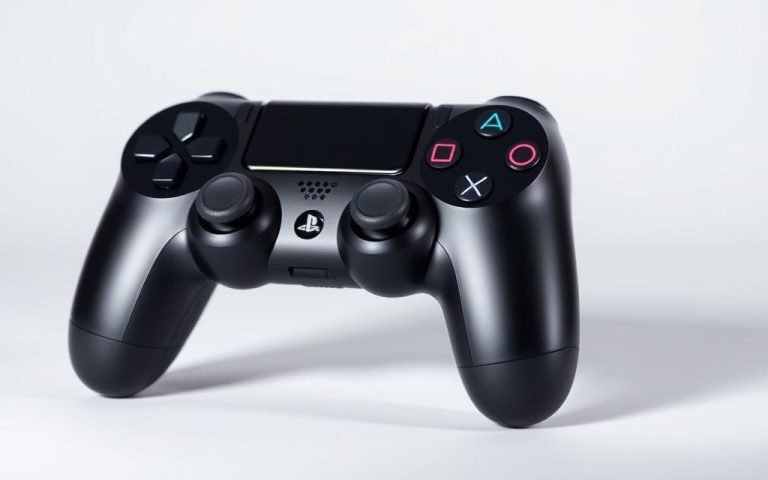
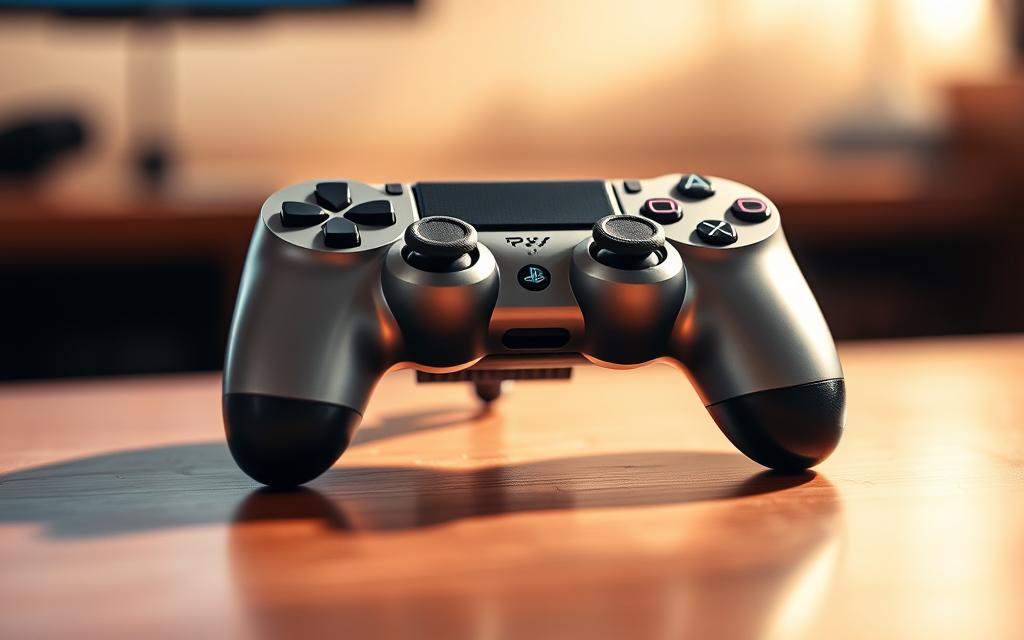
For mobile gaming enthusiasts, using a controller like Sony’s DualShock 4 can significantly enhance the gaming experience. It provides comfort and efficiency, making it ideal for those seeking an optimal gaming experience.
This comprehensive guide will walk you through the process of connecting your PS4 controller to your mobile device. We will cover both Bluetooth and USB connection methods that work for both Android and iOS devices, ensuring that you can enjoy your favorite mobile games with precision and comfort.
By the end of this guide, you’ll be able to enhance your mobile gaming experience with the precision and comfort of your DualShock 4 controller.
Why Use a PS4 Controller for Mobile Gaming
Mobile gaming takes on a whole new level of excitement when you connect your PS4 controller. Using the Bluetooth feature on your phone, you can pair it with your DualShock4 wireless controller, enhancing your gaming experience.
The advantages of using a PS4 controller for mobile gaming are numerous. Some of the key benefits include:
Related:
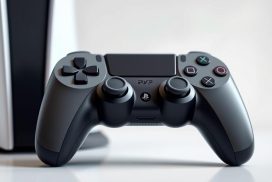
- Superior Ergonomics: The PlayStation controller offers superior ergonomics compared to touchscreen controls, reducing hand fatigue during extended gaming sessions.
- Precise Input: Using a PS4 controller provides more precise input and control, crucial for action games, shooters, and racing titles on your phone.
- Familiar Layout: The familiar button layout makes transitioning between console and mobile gaming seamless for PS4 owners.
- Console-like Experience: Mobile games designed with controller support provide a more console-like experience when played with a proper controller.
- Additional Features: The DualShock4’s touchpad and motion controls can enhance compatible mobile games beyond touch controls.
- Cost-Effective: For PlayStation gamers, using your existing controller saves money compared to purchasing a dedicated mobile gaming controller.
As gaming technology advances, the compatibility between devices improves, making it easier to enjoy your favorite games across different platforms. A comparison of gaming experiences with and without a PS4 controller is shown in the table below:
| Gaming Aspect | Touchscreen Controls | PS4 Controller |
|---|---|---|
| Ergonomics | Prone to hand fatigue | Superior ergonomics, reduced fatigue |
| Precision | Limited precision | More precise input and control |
| Game Compatibility | Limited to touch controls | Compatible with games supporting controllers |
What You’ll Need Before Getting Started
Understanding what’s needed to connect your PS4 controller to your phone is crucial for a seamless experience. To get started, you’ll need to ensure you have the right hardware and software.
Required Hardware
- A genuine Sony DualShock4 wireless controller is essential as third-party controllers may not have the same Bluetooth compatibility with mobile devices.
- Your smartphone or tablet should have Bluetooth capability for wireless connections.
- For wired connections, you’ll need the appropriate adapter depending on your phone’s port type (USB-C, Lightning, or micro-USB).
Software Requirements
To use your PS4 controller with your phone, ensure your device is running a compatible operating system. Android users need to be running Android 10 or higher for native PS4 controller support. iOS users require iOS 13 or later for PlayStation controller compatibility.
How to Connect PS4 Controller to Phone via Bluetooth
Enhance your mobile gaming by connecting your DualShock4 controller to your phone using Bluetooth technology. This connection allows for a more immersive gaming experience, leveraging the comfort and familiarity of the PS4 controller.
Putting Your DualShock4 in Pairing Mode
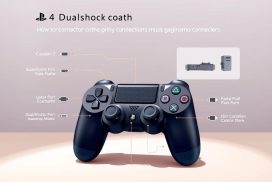
To initiate the pairing process, you need to put your DualShock4 controller into pairing mode. Press and hold both the Share button and the PS button simultaneously until the light bar on the back of the controller starts flashing rapidly. This indicates that the controller is now discoverable via Bluetooth.
Connecting to Android Devices
For Android devices, navigate to Settings > Bluetooth, ensure Bluetooth is enabled, and then select “Wireless Controller” or “DUALSHOCK4” from the available devices list. Your Android device will now connect to the PS4 controller.
Connecting to iOS Devices
On iOS devices, go to Settings > Bluetooth, toggle Bluetooth on, and select the DualShock4 controller when it appears in the Other Devices section. Once connected, the controller’s light bar will typically change to a solid color, indicating a successful connection.
| Device Type | Steps to Connect |
|---|---|
| Android | Settings > Bluetooth > Select “Wireless Controller” or “DUALSHOCK4” |
| iOS | Settings > Bluetooth > Select DualShock4 controller under Other Devices |
Using a USB Connection Method
A USB connection offers a reliable way to connect your DualShock4 controller to your phone, reducing latency and interference. This method is particularly useful for competitive mobile gaming where stability is crucial.
Required Cables and Adapters
To establish a USB connection, you’ll need the right cable and possibly an adapter. For Android devices with USB-C ports, a USB-C to Micro-USB cable or a USB-A to USB-C adapter is necessary. iPhone users will require a Lightning to USB adapter, commonly known as a Camera Adapter, to connect their PS4 controller via cable.
Step-by-Step USB Connection Process
The process is straightforward: simply plug in your controller using the appropriate cable and adapter. Some phones may require enabling OTG (On-The-Go) functionality in settings. Once connected, you’re ready to play with no additional setup needed, enjoying a more stable connection to your device.
Device Compatibility Guide
To ensure a seamless gaming experience, it’s crucial to check if your device is compatible with the PS4 controller. The compatibility of your PS4 controller with your mobile device depends on the operating system and hardware specifications.
Android Version Requirements
For Android devices, the PS4 controller is compatible with Android 10 or later versions. To check your Android version, navigate to Settings > About phone > Android version on most devices. Sony Xperia devices typically offer the best compatibility with PS4 controllers due to their PlayStation ecosystem integration.
- Android 10 or newer is required for native support of PlayStation controllers.
- Sony Xperia devices offer optimal compatibility.
- Some budget Android phones may not fully support all controller features.
iOS Version Requirements
iOS devices require iOS 13 or later for native DualShock4 support, with full functionality available on iPhone 6s and newer models. Similarly, iPad devices need iPadOS 13 or later to be compatible with PlayStation controllers.
- iOS 13 or later is required for iPhone compatibility.
- iPadOS 13 or later is required for iPad compatibility.
- Regular system updates can improve controller compatibility and performance.
Playing Games With Your Connected Controller
Connecting your PS4 controller to your phone opens up new possibilities for gaming on the go. With the controller connected, you can enjoy a more immersive gaming experience, leveraging the precision of a physical controller for your mobile games.
Compatible Mobile Games
Many popular mobile games now support controllers, including titles like Call of Duty Mobile, Asphalt 9, Minecraft, and GRID Autosport. You can find controller-compatible games in dedicated sections on the Google Play Store and Apple App Store. This compatibility enhances your gaming experience, allowing for more complex controls and a more engaging experience.
Using PS Remote Play App
The PS Remote Play app allows you to stream games directly from your PlayStation console to your mobile device. To use this feature, you’ll need a PlayStation Network account, a PS4 or PS5 console, and a stable internet connection. With the app, you can play games streamed from your console on your phone, using your PS4 controller for control. As Sony notes, “You can use the PS Remote Play app to play your PS4 games on a compatible device, such as a PC or mobile device, as long as you have a stable internet connection.”
“The freedom to play your favorite PS4 games anywhere, anytime, is a game-changer for gamers on the go.”
Additionally, cloud gaming services like Xbox Game Pass, NVIDIA GeForce NOW, and Google Stadia support PS4 controllers, further expanding your gaming options. Emulator apps for retro gaming systems also work well with PlayStation controllers, offering a great way to play classic games.
Troubleshooting Common Connection Issues
Troubleshooting connection issues with your PS4 controller can be straightforward with the right steps. When attempting to connect your DualShock 4 controller to your phone, several common issues might arise.
Controller Won’t Enter Pairing Mode
If your controller won’t enter pairing mode, try resetting it by inserting a small pin into the reset button located on the back near the L2 shoulder button. Ensure your controller is adequately charged, as low battery can prevent proper pairing.
Phone Can’t Find the Controller
For devices that can’t find the controller, try turning Bluetooth off and on again, or restart your phone completely to refresh the Bluetooth system. Check if your controller is already paired with another device nearby.
Controller Connects But Doesn’t Work
When a controller connects but doesn’t work in games, verify that the game explicitly supports external controllers in its settings or description.
Fixing Input Lag and Disconnection Problems
Bluetooth interference from other devices. Try connecting in an area with fewer wireless devices. Frequent disconnections may indicate a firmware issue, resolvable by connecting the controller to a PS4 console for updates.
Customizing Your Controller Experience
Customizing your DualShock 4 controller can significantly enhance your mobile gaming experience. While Android devices don’t natively support button remapping for the PS4 controller, there are workarounds and third-party apps that can help.
Button Mapping Options
Some games offer in-game button customization, allowing you to tailor the controls to your preferences. For more comprehensive button mapping, third-party apps like Octopus and ShootingPlus V3 can remap buttons on Android devices. On iOS, devices running iOS 14 or later can utilize the built-in button remapping feature under Settings > General > Game Controller.
| Platform | Button Mapping Method |
|---|---|
| Android | Third-party apps (e.g., Octopus, ShootingPlus V3) |
| iOS (iOS 14+) | Built-in feature under Settings > General > Game Controller |
Adjusting Controller Settings
Adjusting your controller’s sensitivity settings can improve your gaming performance, especially in precision-based games. Additionally, using controller grip attachments and thumbstick covers can enhance comfort during extended gaming sessions. For PlayStation Remote Play users, button configurations from your console will carry over to your mobile device, ensuring a consistent gaming experience.
Conclusion
Transform your mobile gaming sessions by connecting your PS4 controller to your phone, and enjoy a more immersive experience. This simple step opens up a whole new world of gaming possibilities with console-quality control. Whether you choose a wireless Bluetooth connection or a wired USB link, you’ll notice a significant improvement over touchscreen controls.
To get the most out of your PS4 controller, make sure your phone is updated to the latest operating system version. The PS Remote Play app further enhances the experience, allowing you to play your console games anywhere with an internet connection. Experiment with different games and settings to find your perfect gaming setup.
By following this guide, you’ve successfully connected your PlayStation controller to your phone and enhanced your mobile gaming experience. If you encounter any persistent issues, revisit the troubleshooting section or consult online forums specific to your device model.
FAQ
Is it possible to use a PS4 controller with my Android device?
Yes, most Android devices support PS4 controllers via Bluetooth. Make sure your device is compatible and follow the pairing process.
Can I use my PS4 controller with iOS devices?
Yes, iOS devices support PS4 controllers, but you need to be running iOS 13 or later. You can pair your controller using Bluetooth.
What if my PS4 controller won’t enter pairing mode?
Ensure you’re pressing and holding the PS and Share buttons simultaneously until the light bar blinks. If it still doesn’t work, try resetting your controller.
Why is my phone unable to find my PS4 controller?
Check that your controller is in pairing mode and that Bluetooth is enabled on your phone. Restarting both devices can also resolve the issue.
Can I play any game with my PS4 controller on my phone?
Most games that support gamepads can be played with a PS4 controller. However, some games may require additional setup or button mapping.
How do I adjust controller settings on my device?
You can usually adjust controller settings within the game’s settings menu or through your device’s accessibility settings.
What is the PS Remote Play app used for?
The PS Remote Play app allows you to stream games from your PS4 console to your mobile device, and you can use your PS4 controller to play.
Can I customize the button mapping on my PS4 controller for mobile gaming?
Some games and third-party apps allow you to customize button mapping. Check the game’s settings or the app’s documentation for more information.